






3 Easy Steps to Check Backlinks in Google Analytics (+ Alternatives)

Backlinks matter. And they matter a lot. They boost your SEO performance in search engines, bring referral traffic, and build authority.
But sometimes, they also send low-quality traffic from dubious websites you’ve never heard of.
And you won’t really know what types of links your website gets until you check them. Luckily, you don’t necessarily need a pricey tool. You can check backlinks in Google Analytics (GA4) for free.
Yes, it has its limitations. But it shows enough to gain insights into your website’s referral traffic.
In this guide, we will walk you through everything GA4 can and can’t do and give you a step-by-step process on how to check your backlinks in Google Analytics.
Before we start: What GA4 can and can’t show for backlink analysis
Let’s clear this up first because most people approach GA4 as a perfect solution to everything. But while it’s powerful, it isn’t limitless.
So, let’s figure out everything that’s possible and what it isn’t.
TL;DR: GA4 is great for checking referral traffic (clicks coming from other sites) and engagement from those sessions. But it won’t show you the exact external pages, links themselves, or mentions that didn’t bring in any clicks.
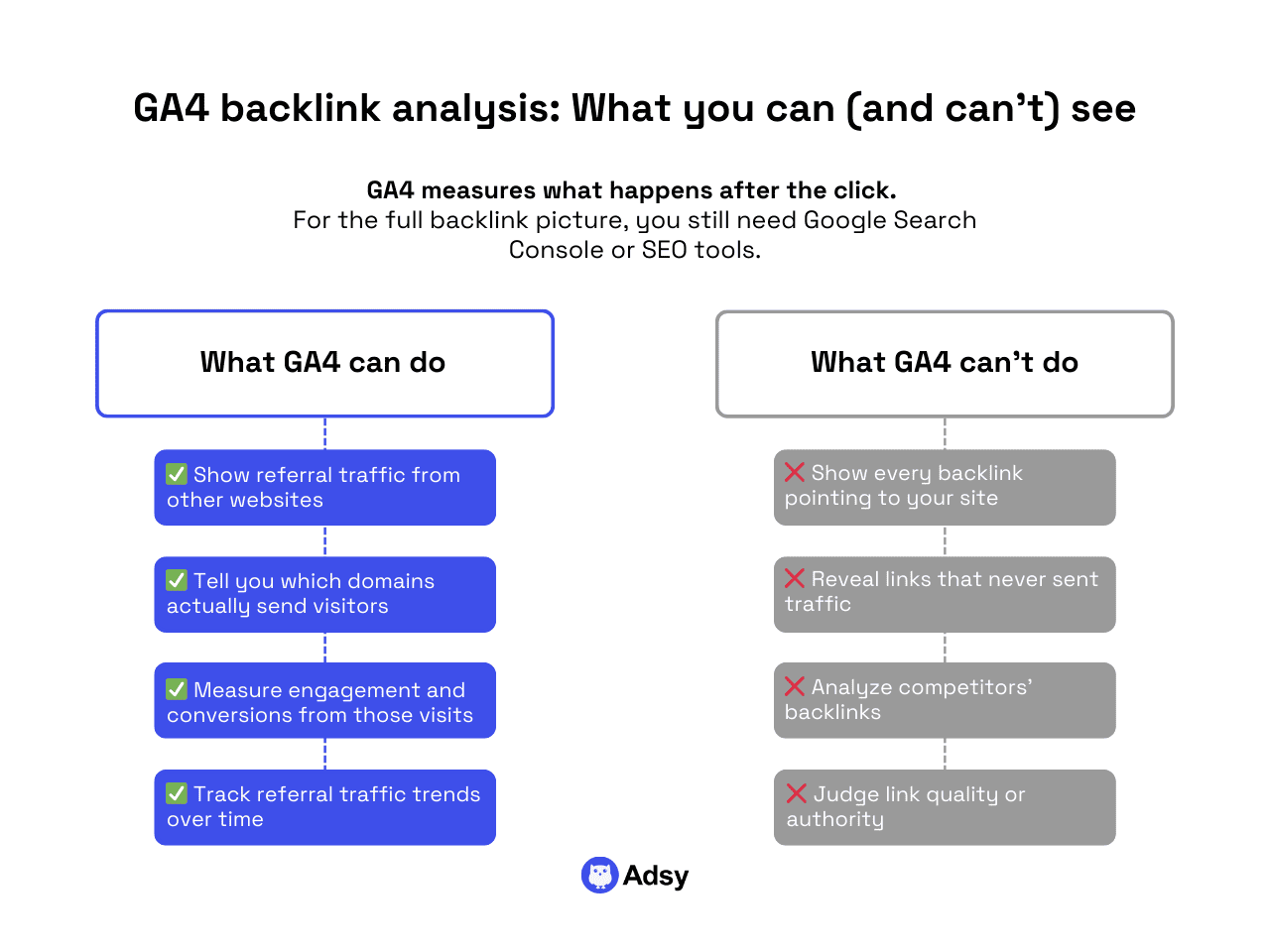
What you can check
Overall, GA4 can help you with multiple tasks. You can:
- See referral traffic, meaning traffic coming from external websites.
- Identify domains sending clicks.
- Analyze user behavior from referral links: engagement rate, average engagement time, conversions (and bounce rate if added).
- Spot unwanted referrals and spam traffic.
- Track referral traffic over time if your data streams are configured properly.
That will help you to receive important insights and see where you can make your backlink strategy better.
GA4 limitations
First of all, GA4 doesn’t have a “backlink report” as such. We can only check the referral traffic. Overall, GA4 can’t show you the following:
- All the URLs pointing to your website.
- It doesn’t show mentions that don’t bring any traffic (this is important, as many links you get for SEO don’t bring measurable traffic).
- It doesn’t show exact external pages, anchor texts, or other important information.
- You can only view your own referral traffic, not your competitors’.
So, while GA4 can help you check some important SEO KPIs, it won’t give you the full backlink data you’d normally expect from SEO tools.
Still, let’s look at how you can view referral traffic in your GA account. And if you want to add an extra tool (which you probably will), we’ll cover some great alternatives later (both free and paid).
How to check backlinks in Google Analytics in 3 steps
As you now understand, technically, you can’t check backlinks in Google Analytics.
But everyone keeps saying that because you can check the traffic and engagement metrics that external sites bring you.
So, it helps you analyze backlink performance rather than URLs themselves.
Step 0: Set up GA4
If you’ve never used Google Analytics before, you’ll need to set it up and get access to the GA4 property.
You can do this by adding the GA4 tracking code or getting access from the site owner. Overall, the process is very easy. Just follow the steps you see on the screen.
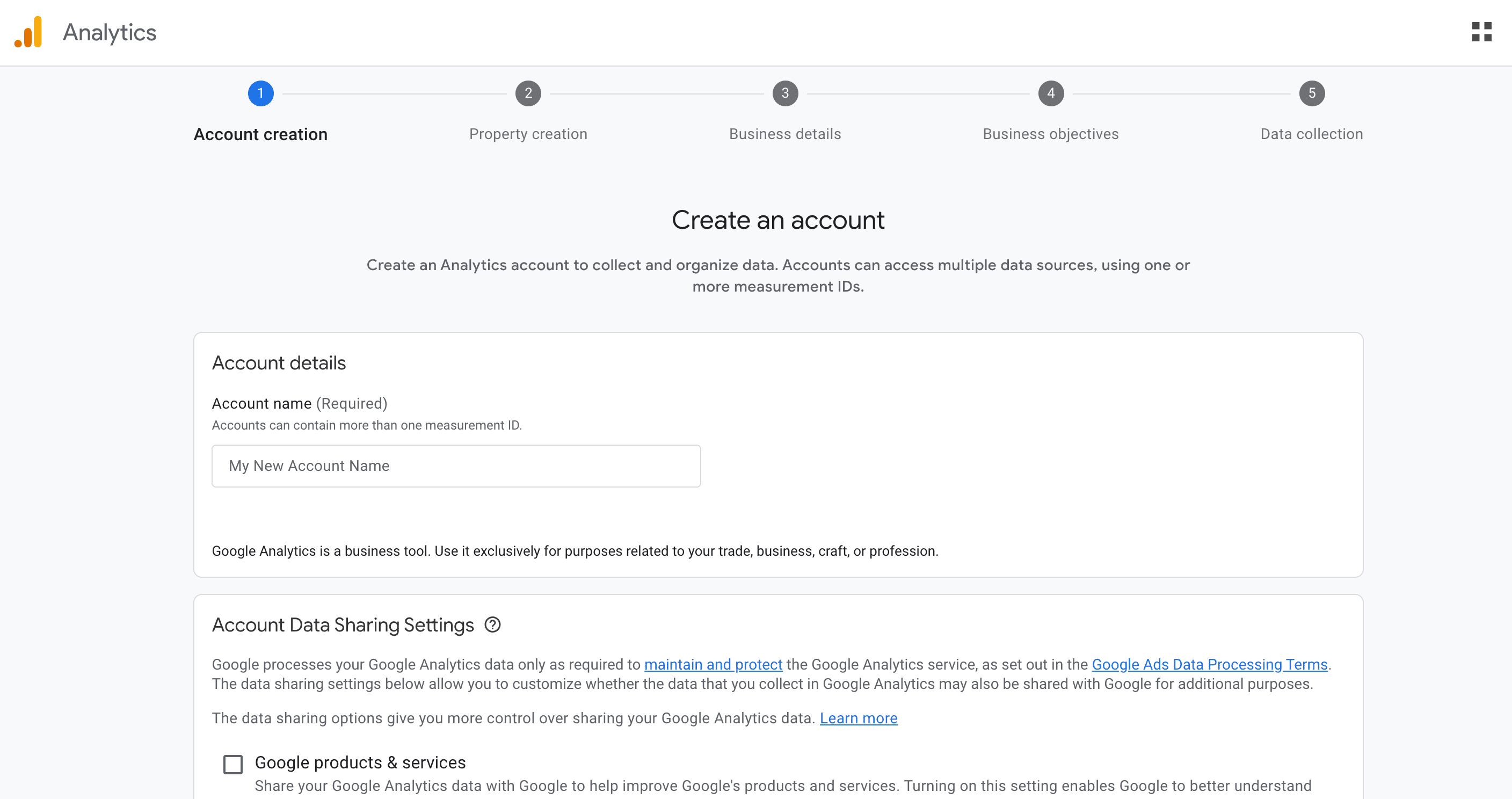
Source: Google
Still, there is one important limitation to keep in mind: you can only use Google Analytics for websites you have access to (yours or your clients’).
To analyze backlinks or traffic of other businesses (like your competitors), you’ll need third-party SEO tools.
Step 1: Open Google Analytics and go to the traffic acquisition report
If you want to check website backlinks in Google Analytics, you need to start by opening your Traffic acquisition report.
The process is very straightforward, just:
- Log in to your Google Analytics account.
- Choose the correct GA4 property and website data streams.
- In the left-side menu, go to Reports > Acquisition > Traffic acquisition.
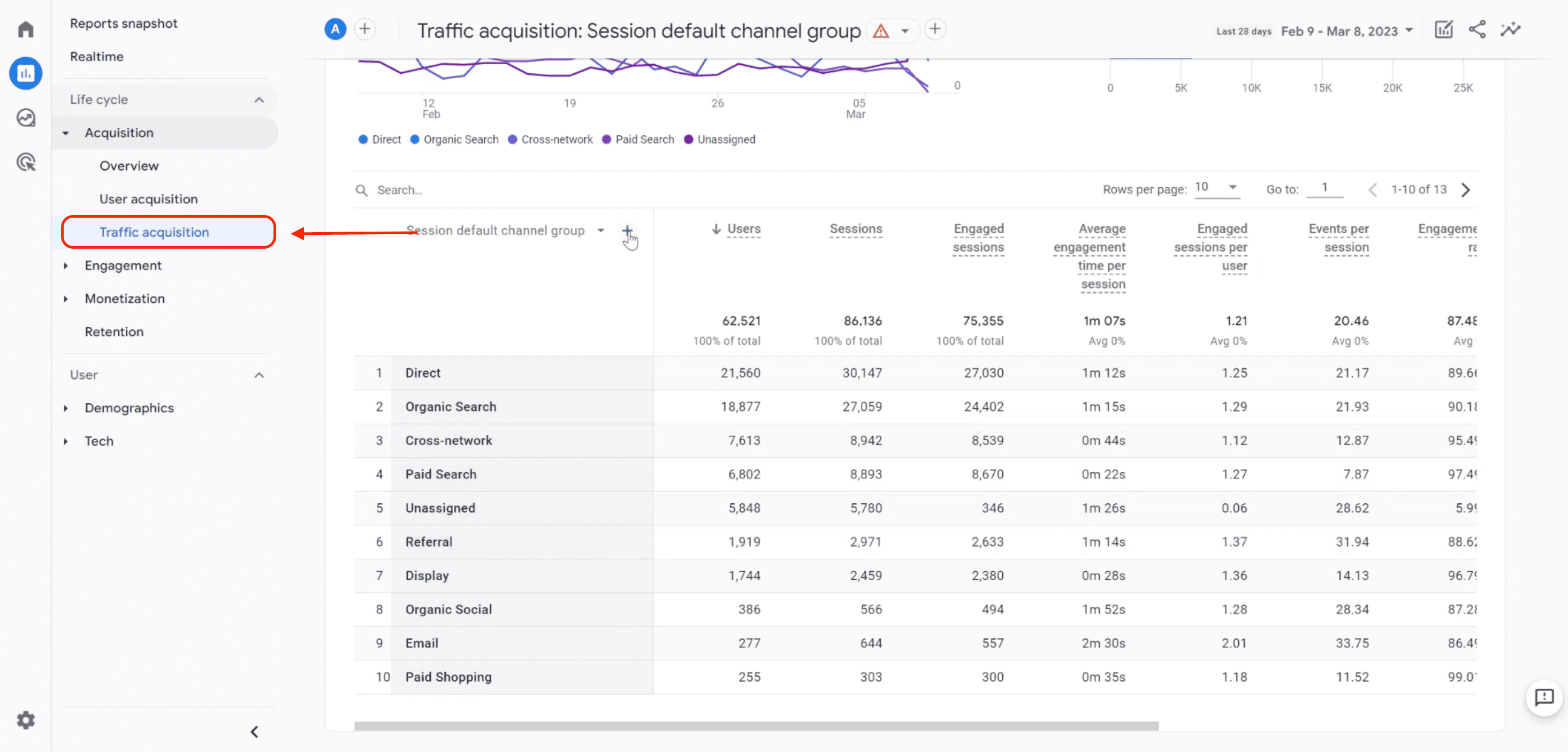
Here, you’ll see all your traffic sources, like direct, organic search, paid search, etc. But what interests us today is referral traffic.
Step 2: Switch to “Session source/medium”
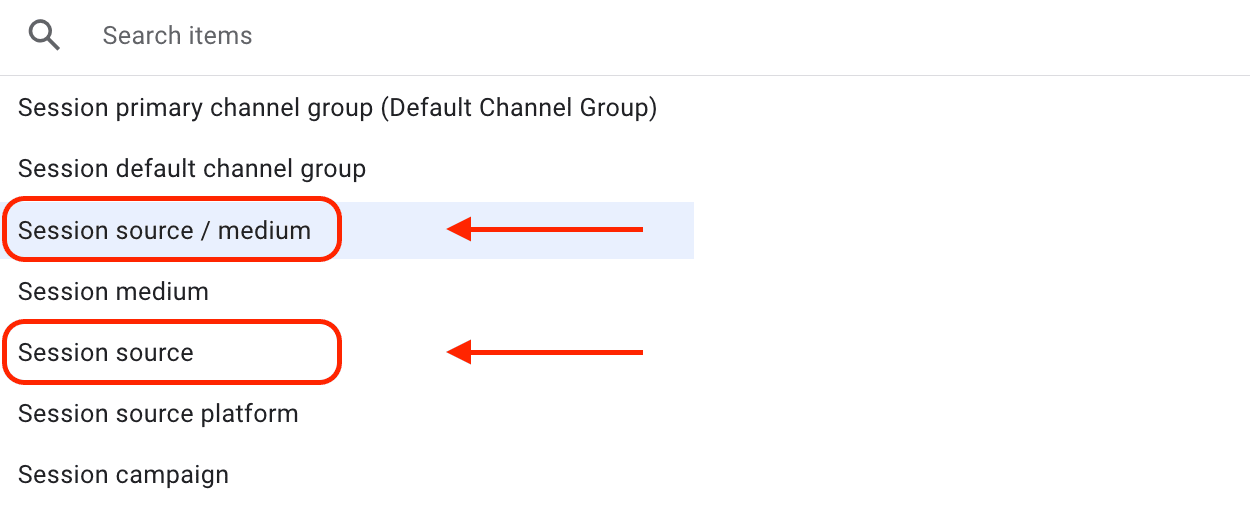
By default, GA4 shows “Session default channel group,” but that is way too broad. We need to check the actual domains that bring this traffic.
For this:
- Open the Traffic Acquisition report, and go to the dropdown located at the top of your traffic data table. You’ll see the Session default channel group there.

- Click on the dropdown and select Session source/medium or Session source. The difference between the two is that “Session source” will only show you the domain that sends traffic (e.g., website.com), while “Session source/medium” will show the domain and the type of traffic (e.g., website.com / organic).
Step 3: Filter the traffic acquisition report to show only referral traffic
After applying “Session source/medium” or “Session source”, you’ll see the referring domains (and maybe also the type of traffic). But we need to filter out referral traffic only because these are basically our backlinks.
You can do this by simply typing “referral” in the search bar above the table with traffic data.
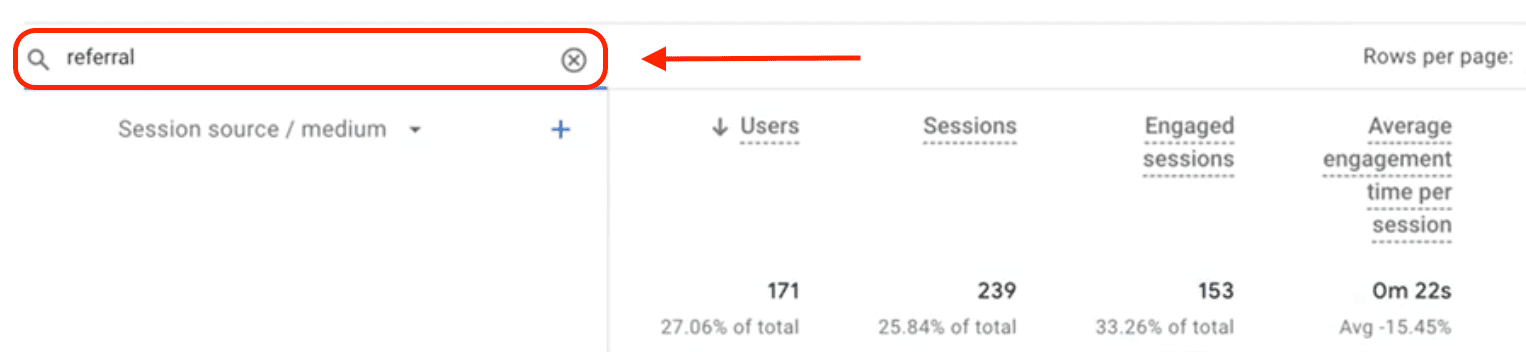
GA4 likely won’t show every backlink in existence, but it will show the ones that drive referral traffic to your site (tracked traffic).
Even then, the data any software offers is approximate.
Best alternatives (free and paid)
Of course, Google Analytics isn’t the only place where you can check your links. Besides, you already know that it doesn’t give you a full picture.
But don’t worry! There are plenty of other options, both free and paid. And if you are really serious about your link building strategy, you want to explore some of these.
Google Search Console (free)
We had to mention GSC.
This is another native Google tool that is often much more helpful when it comes to backlink analysis. Why? For starters, it shows even the URLs that don’t bring any referral traffic.
Besides, you can also see the source, target page, how many backlinks each website sends your way, internal links, etc.
Finding your backlinks report in Google Search Console is easy:
- Go to Links in the left-side menu.
- Find the Top linking sites card under External links.
- Click More to get more details.
Note: After you go to More, you can click each site and see which page on your website they send to. And if you click that page further, you’ll see the URL from the external site where the link appears.
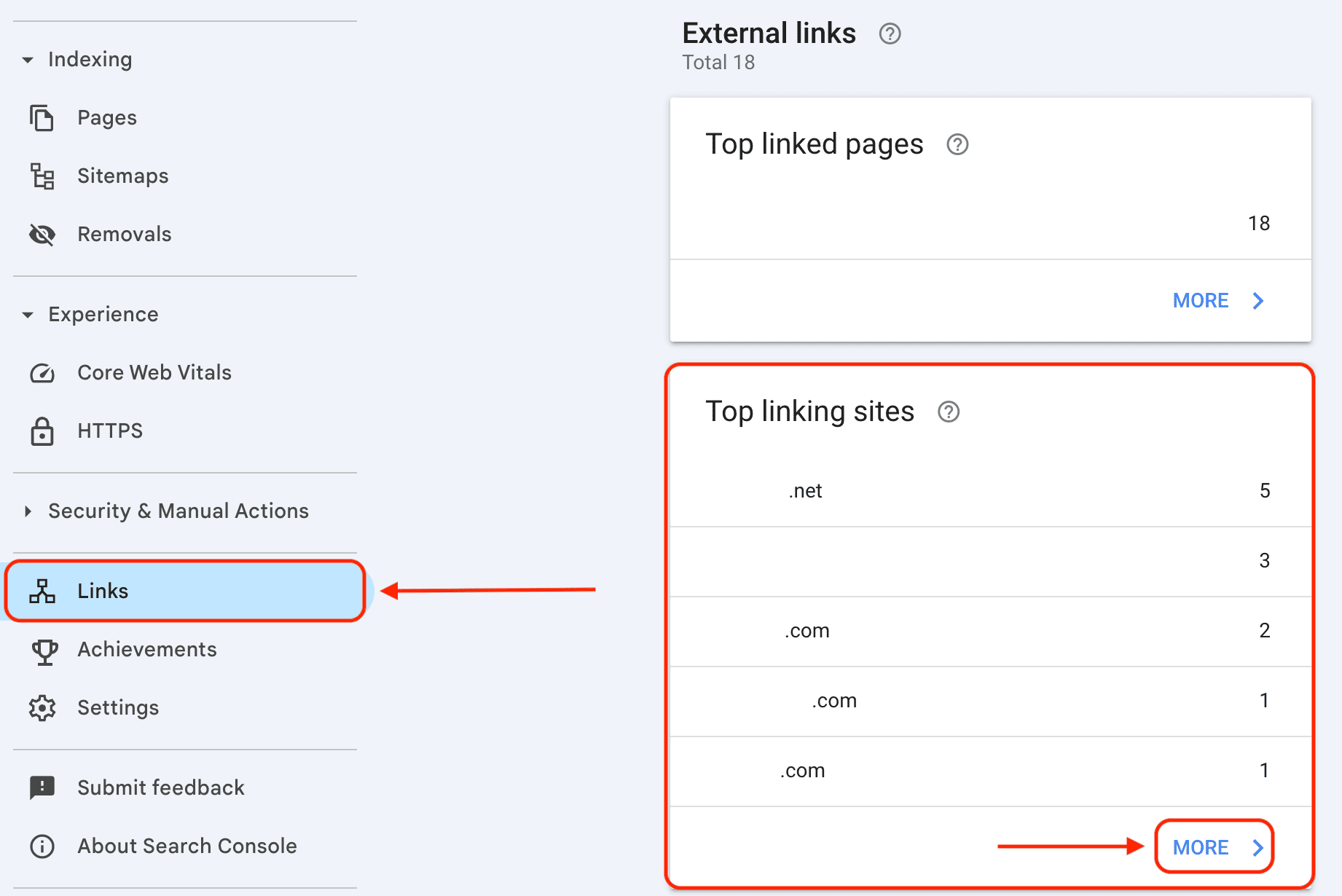
Even though Google Search Console provides more link data than GA4, you’ll still need to check backlinks manually to review their relevance and quality.
Alternatively, you can also use an SEO tool, speaking of which…
Bing Webmaster Tools (free)
Bing Webmaster Tools are actually really helpful for backlink tracking. And overall, it offers more backlink insights than GA4.
It shows you:
- URLs and domains that point to your site (you might have more, as it only shows what it has discovered),
- Approximate URL counts per domain,
- Anchor text used to send to your site,
- Link trends over time,
- Potentially suspicious domains,
- Both internal and external backlinks.
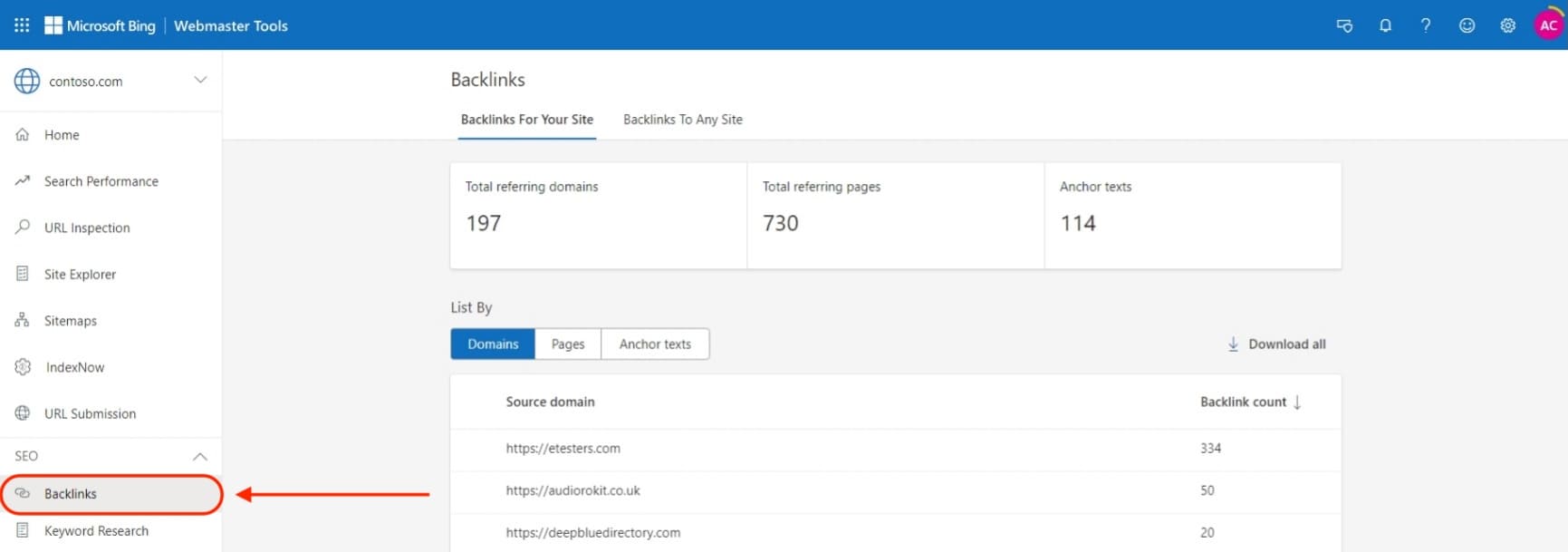
Source: Bing
On top of everything above, you can also check backlink profiles of other websites (even if you don’t verify the ownership).
This data is limited, but it’s still available. GA and GSC don’t offer anything like this.
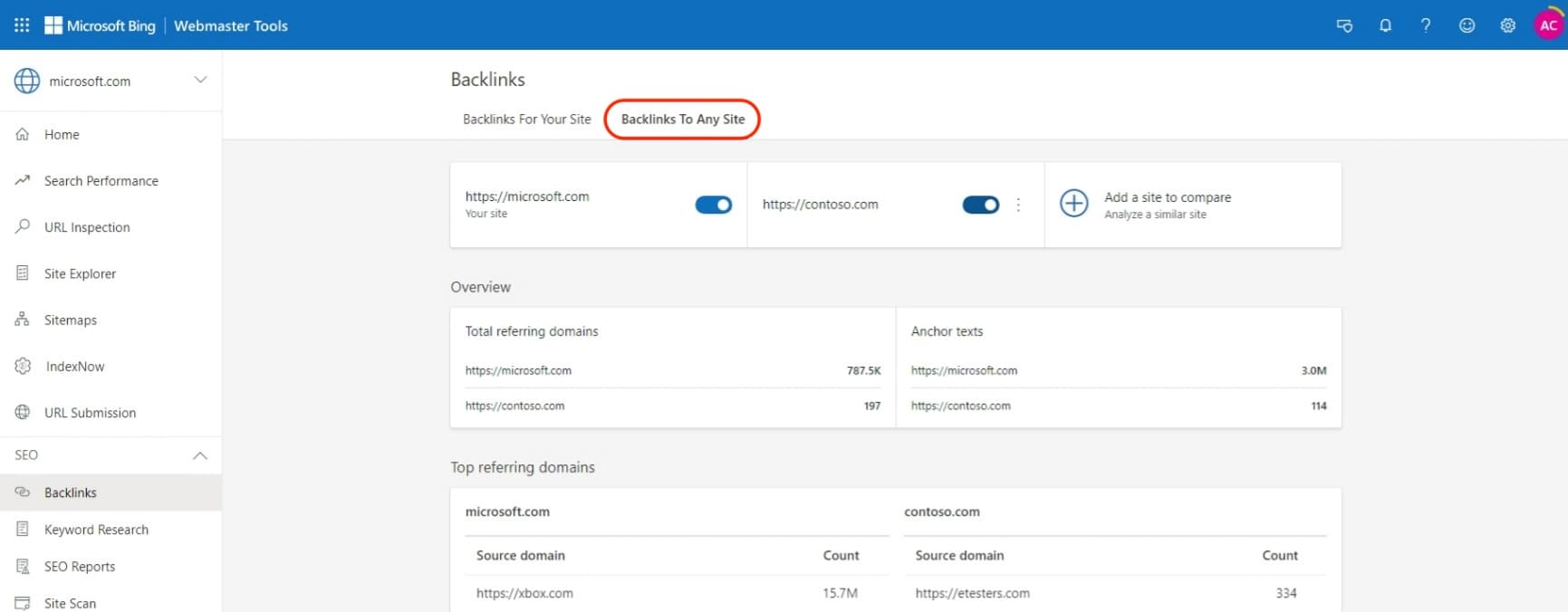
So, as you see, Bing Webmaster Tools gives you many valuable insights into your external mentions. But of course, it isn’t perfect either:
- You won’t see DA/DR scores.
- The data could be limited.
- The sampling might be different from Google’s.
- There isn’t much data on other websites’ links, so any competitor analysis is limited.
With that said, it’s one of the most comprehensive free backlink checkers, especially when it comes to the domains you can verify.
It’s particularly useful if Bing is an important traffic source for you. But even if you mainly focus on Google, it could be really helpful to cross-check.
Majestic (free and paid)
Majestic is a quite popular SEO tool. Apart from the paid version that covers more than just the data you need for your link-building efforts, there is also a free tool.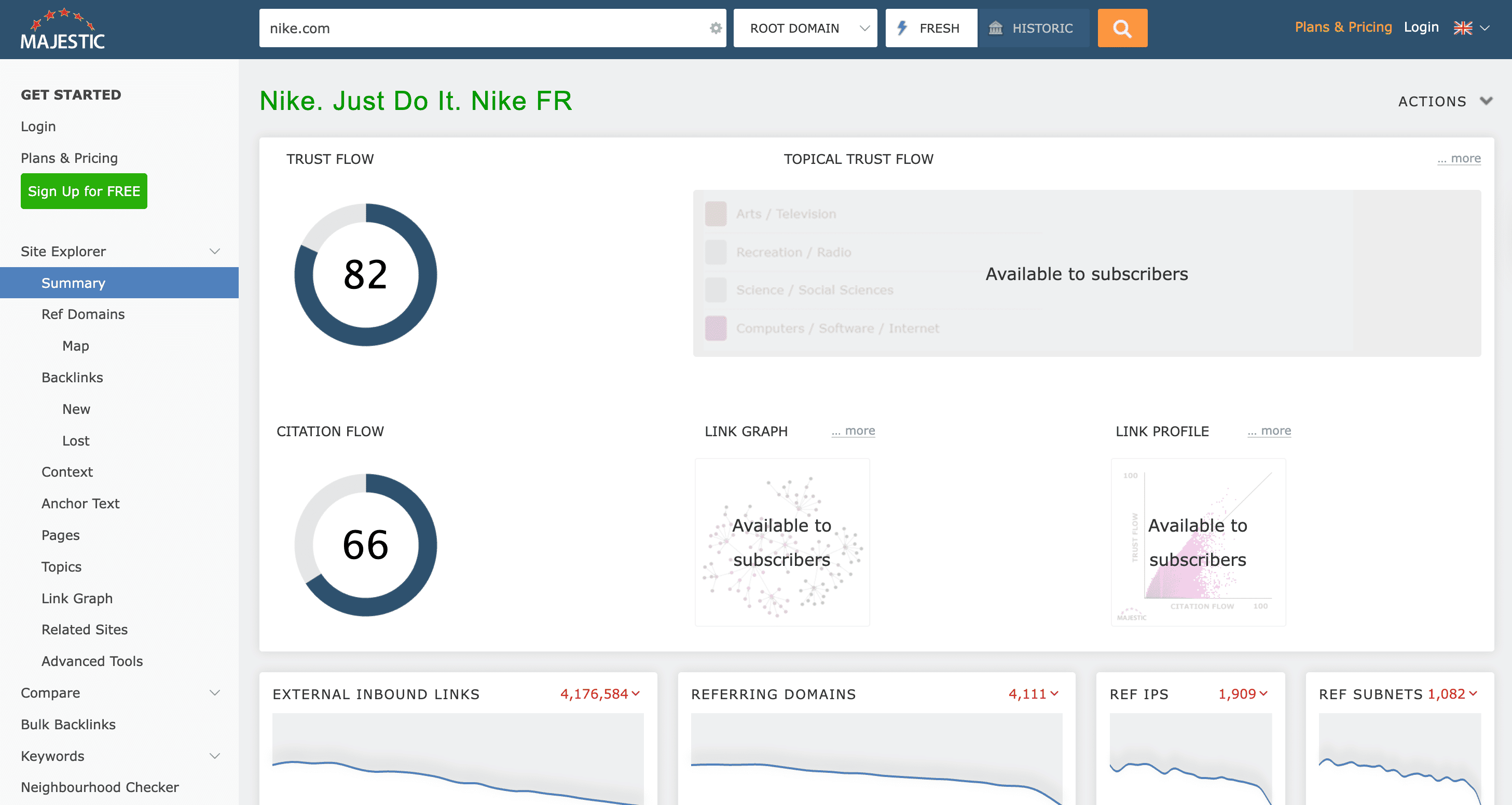
Source: Majestic
As it is free, it’s also very limited. You basically only gain access to:
- Trust flow and citation flow scores,
- The number of external inbound links,
- Site languages and incoming languages,
- Anchor texts,
- Edu and gov mentions, and some more details.
But in reality, you won’t really see actual backlinks in the free version. Still, it can be useful as an addition to some other tools.
Besides, you can also subscribe to a paid plan if that’s something you need.
Ahrefs (free and paid)
You’ve definitely heard of Ahrefs at some point. It is one of the most powerful SEO solutions out there.
But what you might not know is that Ahrefs has one of the largest backlink indexes. That’s why tracking your incoming URLs with this software is a popular approach for many SEO experts.
If you aren’t ready to commit to a paid tool, you can use the free one.
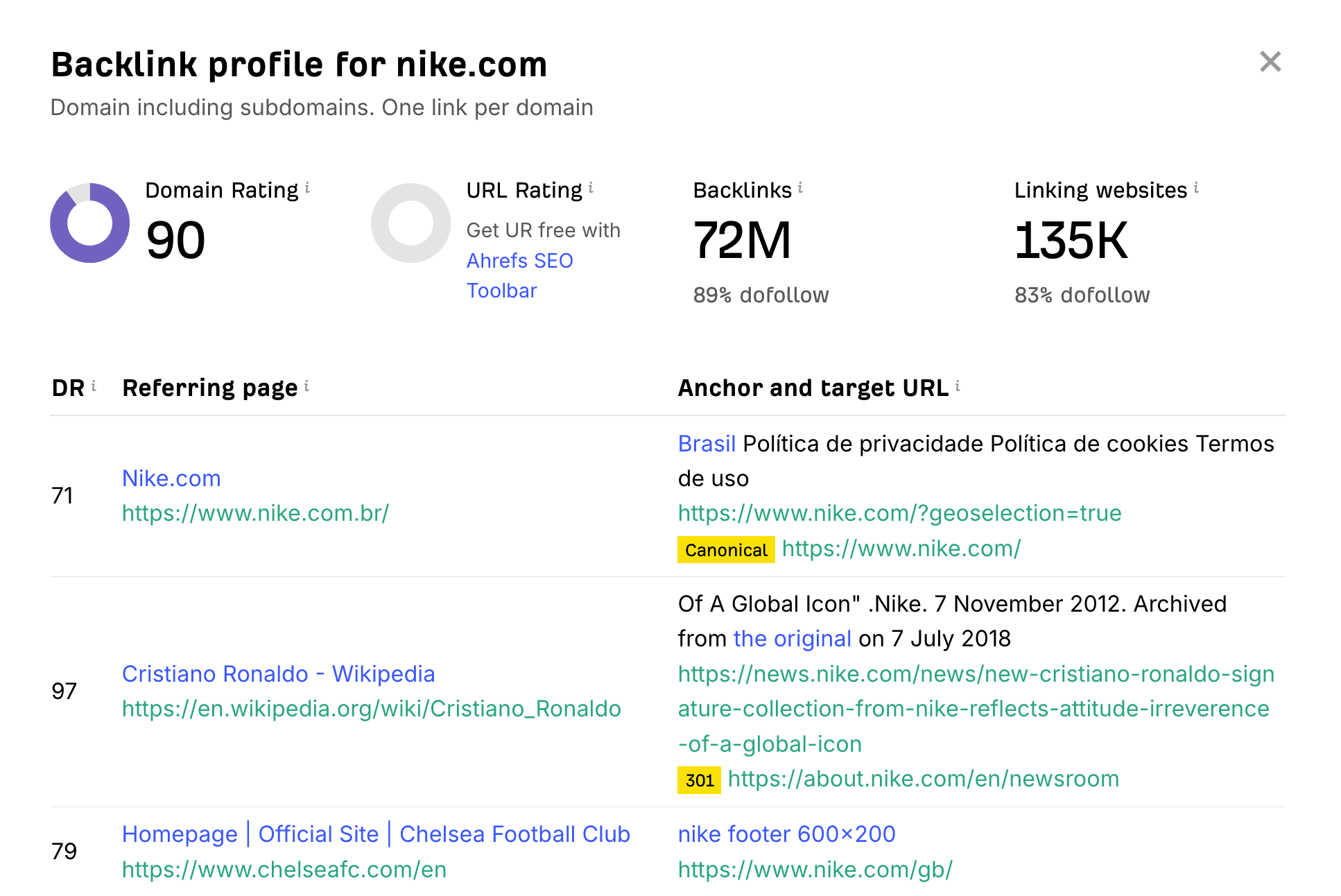
Source: Ahrefs
It’ll show you:
- A limited number of URLs pointing to your site.
- The total number of links.
- And the number of domains.
While it isn’t much, it’s better than nothing.
Semrush (free and paid)
Semrush is another famous name in the SEO space. And similarly to Ahrefs, it has a free checker.
You get the same information, including the number of backlinks and domains, and a limited selection of incoming URLs.
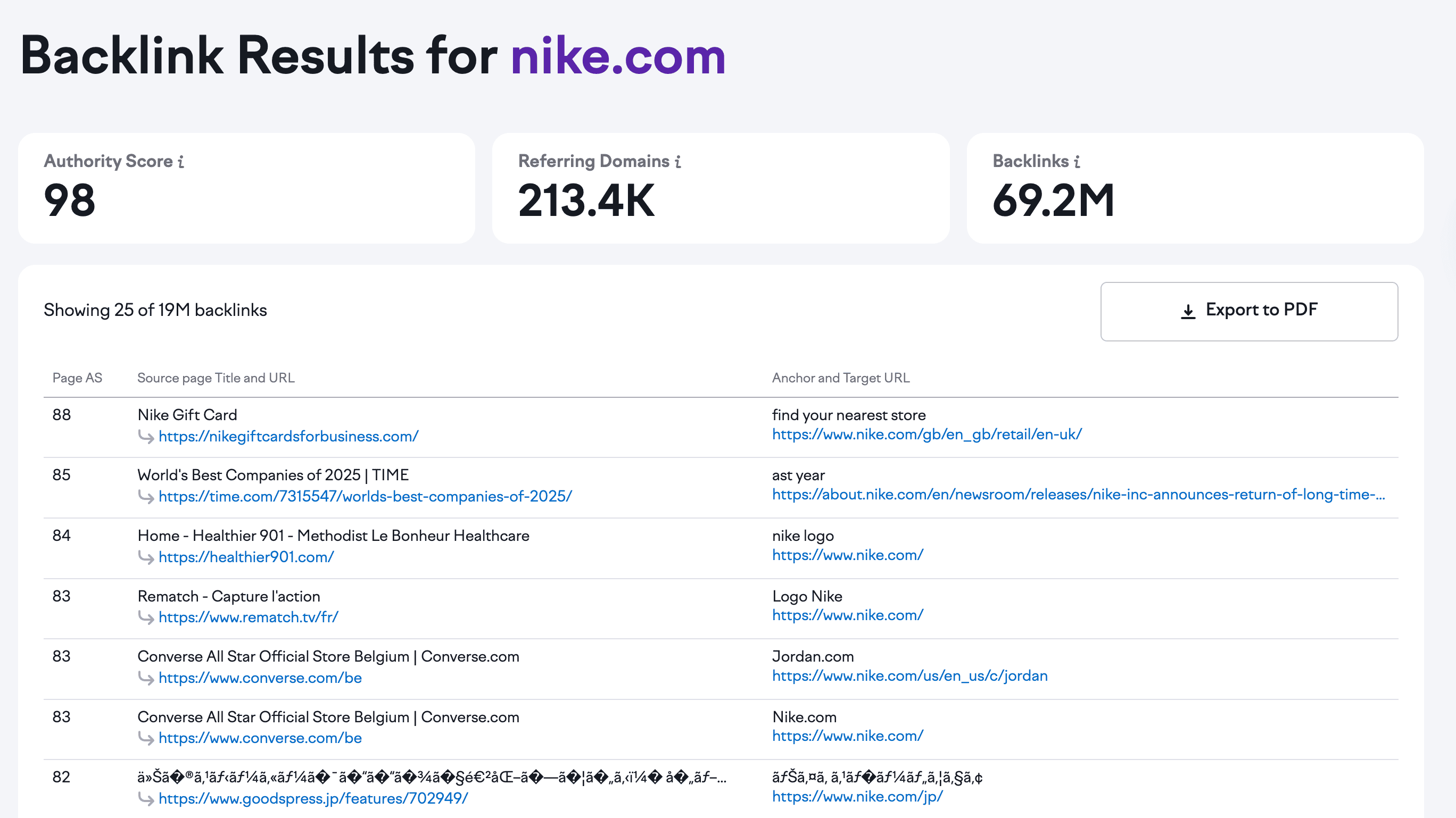
Source: Semrush
For anything more than that, you’ll need a paid plan. But you can first use the free trial to get an idea of how useful it is.
What to do after you find your links in GA4 and other tools?
Okay, so you found your referring domains. Whether you did it with Google Analytics or any other tool, great! Now, you’re one step closer to having more control over your link building.
But this is where a lot of people would just stop. They look at the list, feel proud or confused, and then just close the tab.
Don’t do that.
Backlink data becomes useful only when you work with it. You want to understand not only where the traffic comes from, but if those URLs are doing anything meaningful for your business.
For this, you’ll need a deeper backlink analysis. So, here’s how you can squeeze real value from your findings:
1. Analyze your backlink profile
Not all backlinks that send traffic to your site necessarily mean that they’re coming from a good domain. So, analyzing backlink quality is an important process.
Sure, you don’t need only high-quality backlinks, but you should still ask yourself:
- Does this domain look legit?
- Is it in the same niche?
- Does the organic traffic look fine, or has it been dropping for months now?
- Is the website completely spammy with tons of pop-ups and random ads?
Overall, a good referring domain will have a low spam score, at least medium DR, quality content, etc.
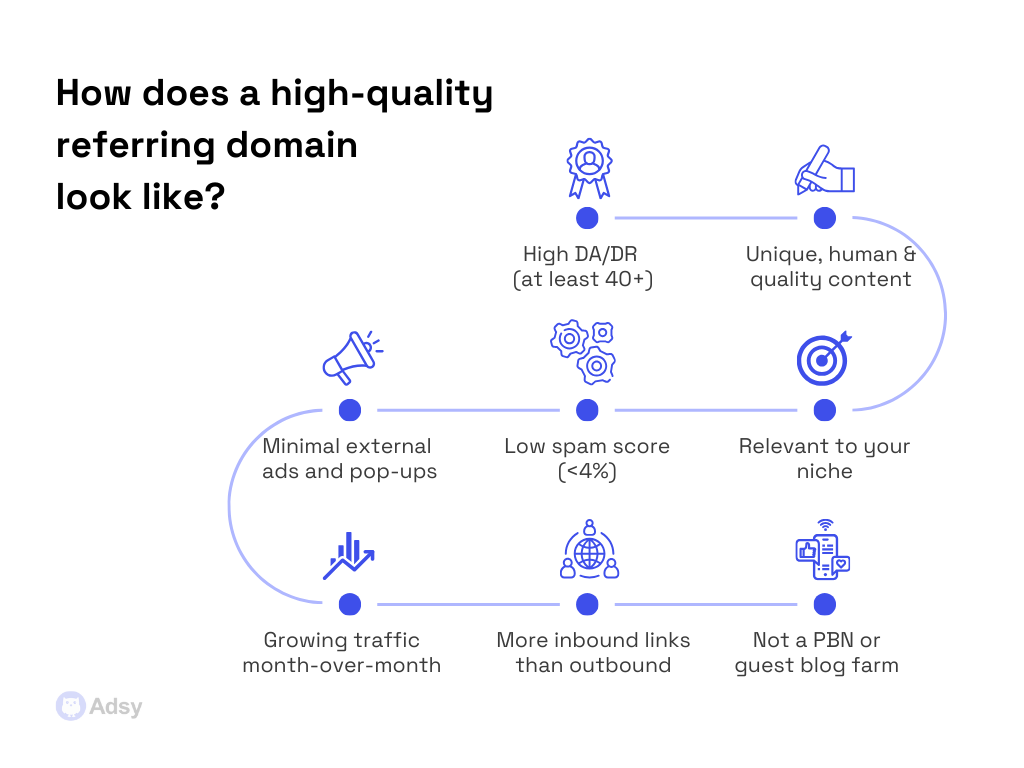
But don’t stop at checking your referring domains only. Look at the bigger picture of your profile. Ideally, it should have a healthy ratio of:
- Nofollow and dofollow links,
- And anchor texts.
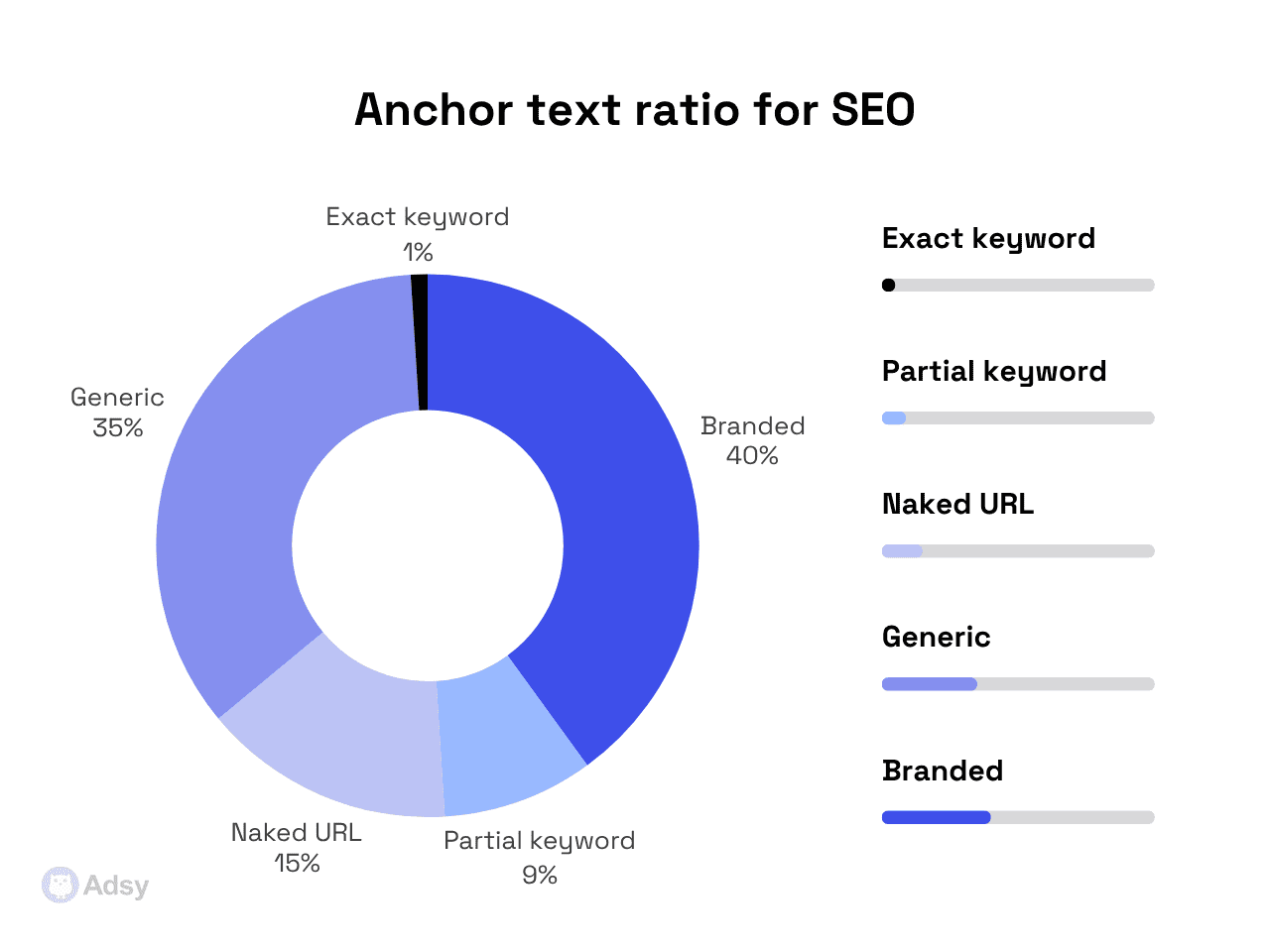
Besides, the URLs that lead to your website have to look legit and be relevant. They can’t all come from random forums, PBNs, and some shady directories.
2. Check whether your external mentions convert
This part is really important if you want your referral traffic to be effective.
- If you only get backlinks for SEO, it’s fine. Normally, these have a different goal: to bring you more juice and improve your domain rating. So, it’s fine.
- But if you get mentions in other resources online to get leads, you want them to convert.
In your Traffic acquisition report in GA4, you can check Conversions, Engaged sessions, and Event count to understand if a backlink brings actual value for your lead generation.
For example, a small blog might send only 20 visits per month. Yet, those visitors actually subscribe, sign up, or buy something. At the same time, a giant media outlet may send 500 clicks and nothing else.
Do you really need to guess which one is more valuable?:)
3. Catch outdated or broken URLs
Look, broken links won’t do anything good for your SEO or conversions.
So, when referral traffic lands on 404 pages, redirect chains, old content with outdated information, etc., it kills the true value of the backlink.
GA4 doesn’t detect broken URLs directly. But it helps you spot these issues through some signals, like:
- High bounce rate,
- Zero engagement,
- No conversions from referral traffic, etc.
If a good backlink is sending traffic to a bad page, you’re wasting potential conversions.
So, the best thing you can do is fix the page, update the content, redirect properly, and enjoy the real value of your link building strategy.
4. Find bad backlinks
You’ve likely heard that all links are different. While some bring you quality juice and grow your domain authority, others are just toxic.
How do you find backlinks that are actually “bad”?
You have to look out for pages that:
- Have low-quality, AI-generated content,
- Send to random pages in sensitive niches,
- Have tons of pop-ups all over the place,
- Have declining traffic and low DA/DR,
- Use spammy, keyword-based anchors all the time,
- Look like a PBN (link farm).
These are likely unwanted domains you should get rid of.
But even if you find websites like that in your profile, you don’t need to panic. Google ignores most spammy URLs anyway.
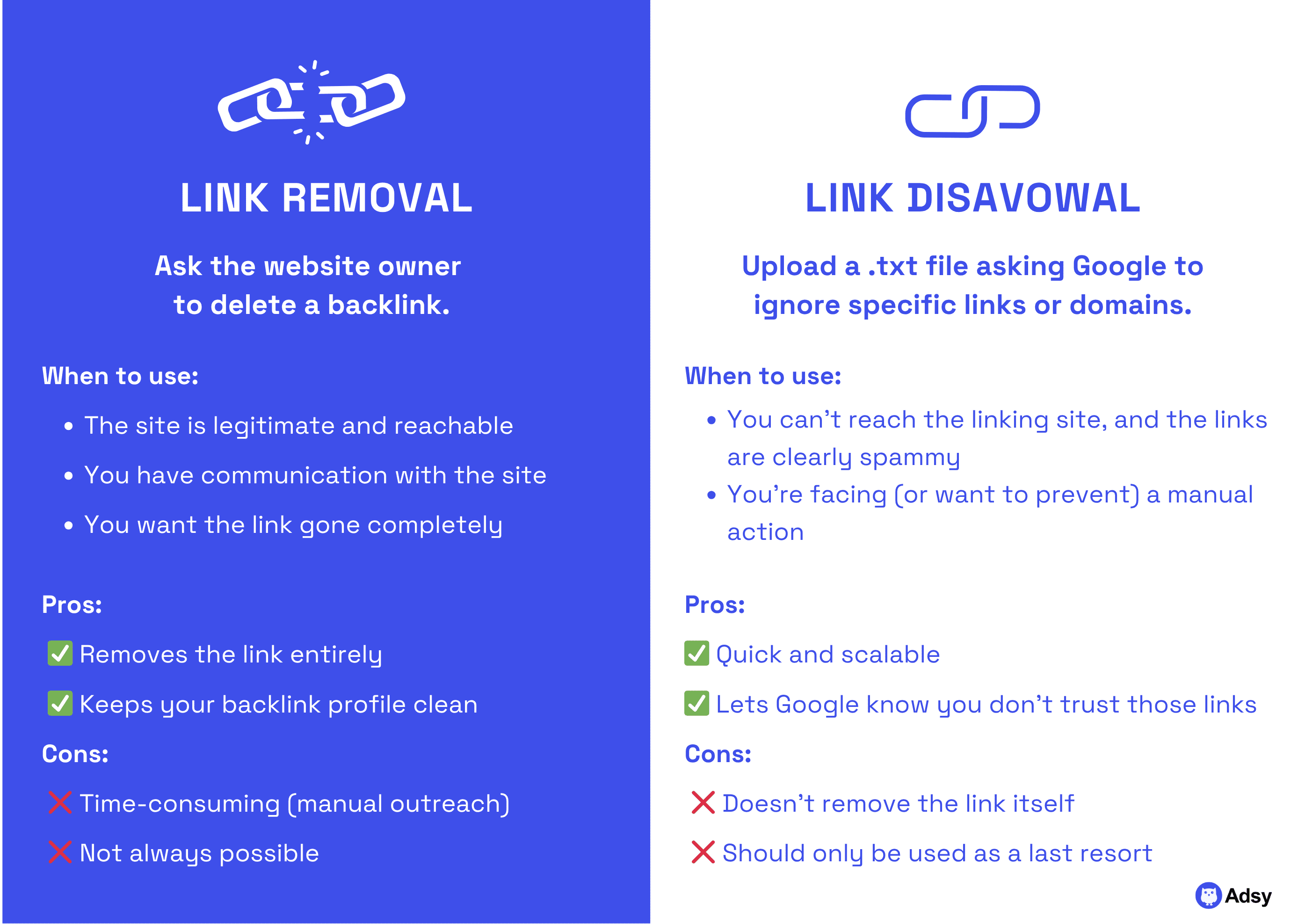
Still, if you have too many low-quality backlinks and see consistent garbage traffic from shady domains, you might want to take action. What can you do? Basically, you have two main options:
- Remove: This means reaching out to website owners of the mentions you don’t like and asking them to remove those.
- Disavow: This is a more serious approach when you submit a special file asking Google to ignore some URLs or domains. If you’re a beginner, though, don’t rely on this solution too much. It is an advanced tool.
Conclusion
Now you know when GA4 can help and when you need something else for tracking backlinks effectively.
While Google Analytics won’t give you everything you need to know about your incoming URLs, it will show you something really important.
It basically reveals how users behave when they come from those external mentions.
So, it’s just a matter of needs.
And even though there isn’t that much Google Analytics backlinks data, it can still be very insightful, especially when paired with other software.
All trademarks, logos, images, and materials are the property of their respective rights holders.
They are used solely for informational, analytical, and review purposes in accordance with applicable copyright law.



 Sign Up
 Sign Up