





Edit Mode, Site’s URL Filter, and Modify Filter Set View: What’s New on Adsy
Adsy’s goal stays unchanged – to make content distribution and link building as comfortable and intuitive as possible.
We have some new updates in features and functionality we’d like to share with you.
Edit mode
We offer you a vast choice of filters to help you make your website selection more precise. At the same time, we understand that you might have your preferred filters.
We added the “Edit mode” to let you access them faster.
Go to the “Search for sites” page and press the edit button.
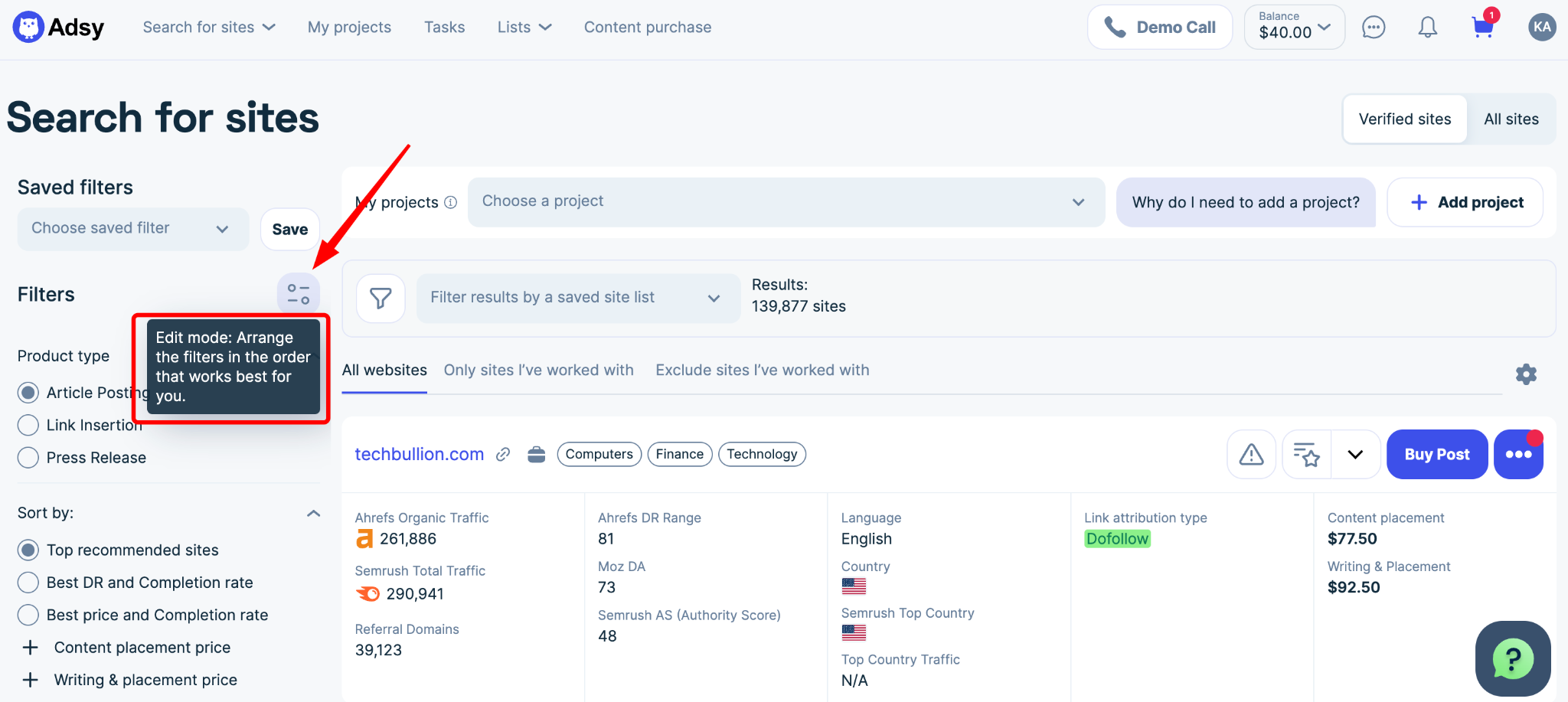
After you press the button, edit mode will be activated.
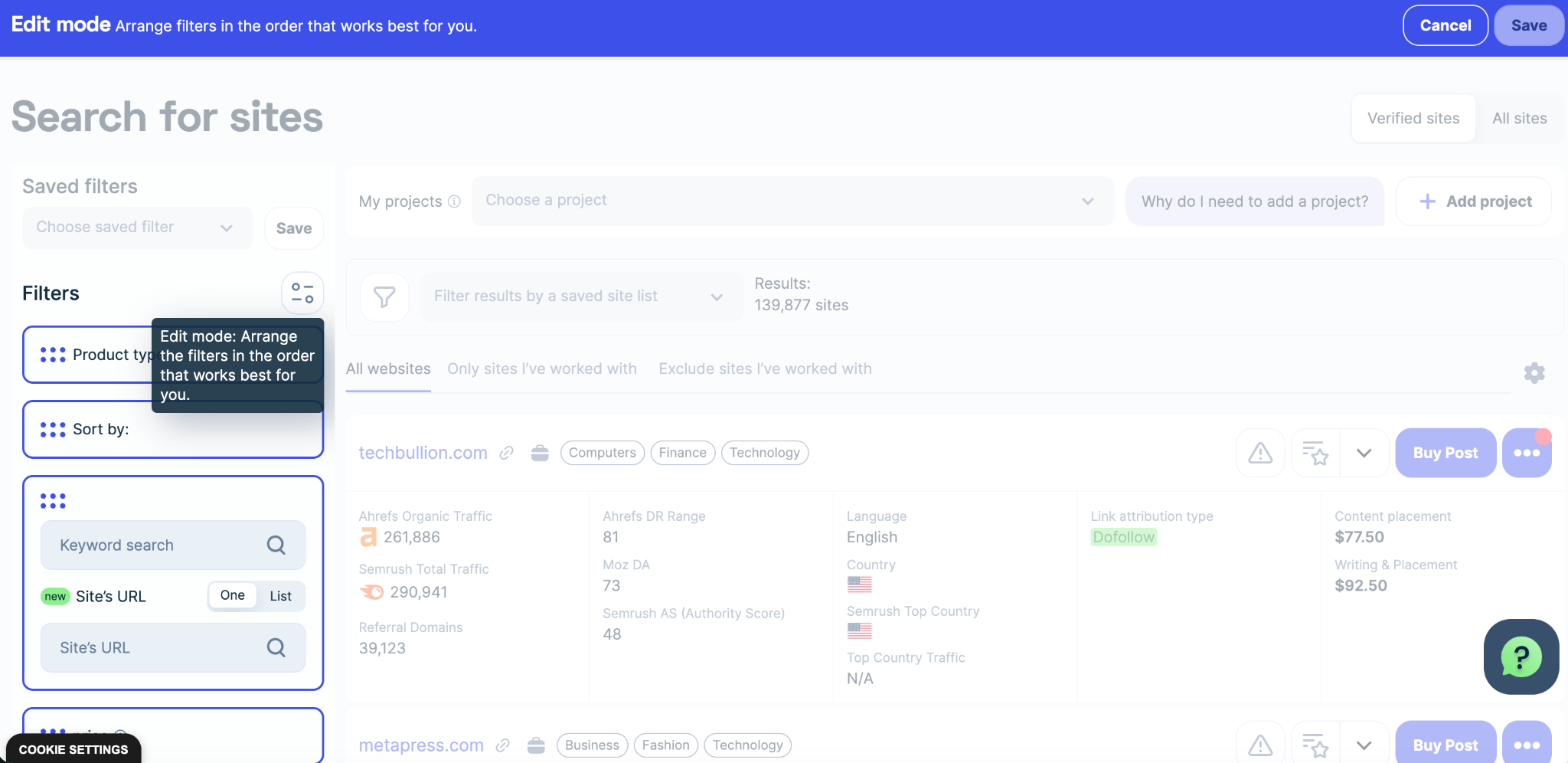
Grab the filter box and arrange it in the required order.
For example, you are interested in Ahrefs DR, Ahrefs Organic Traffic, and Semrush Total Traffic. Pin them to the top and press “Save” in the top right corner to finalize the changes.
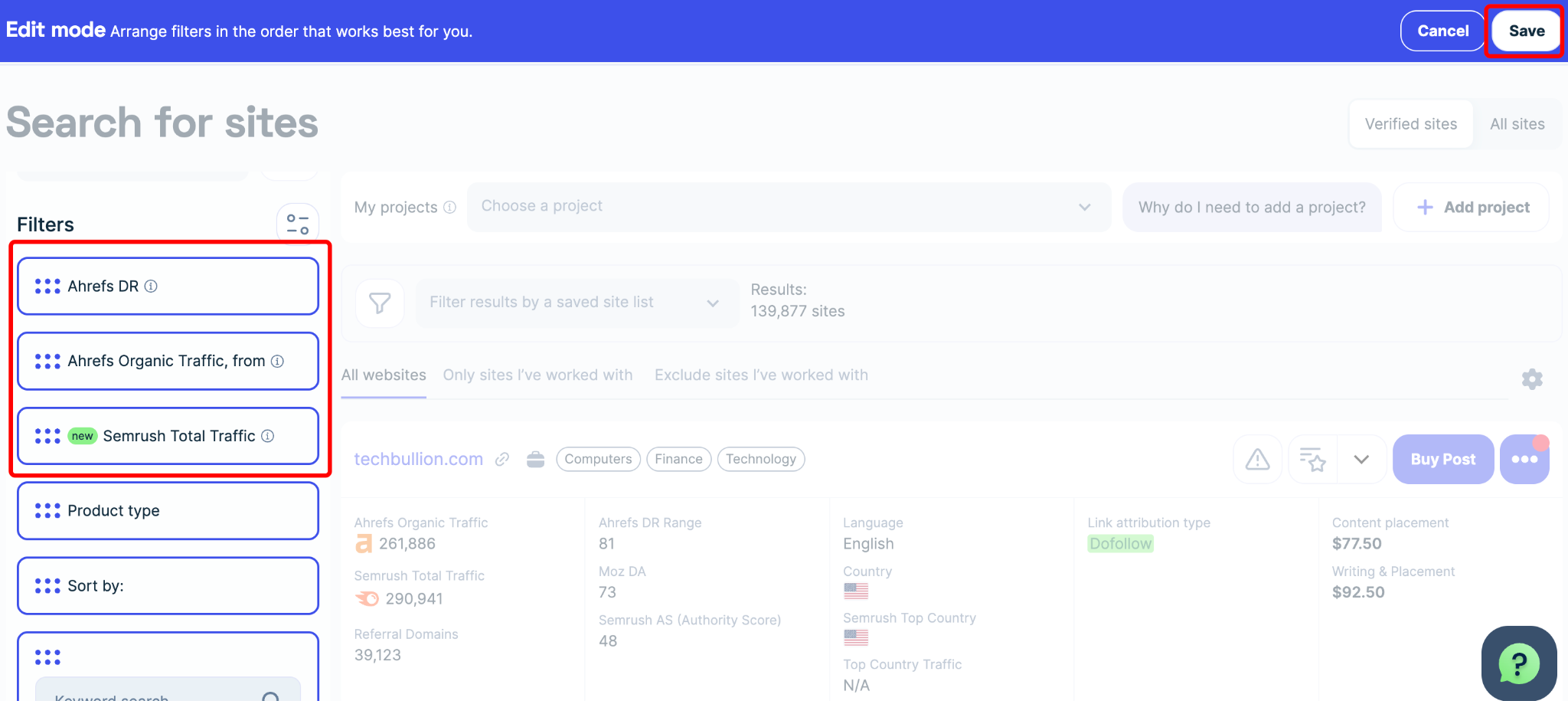
Now you will see these filters at the very top.
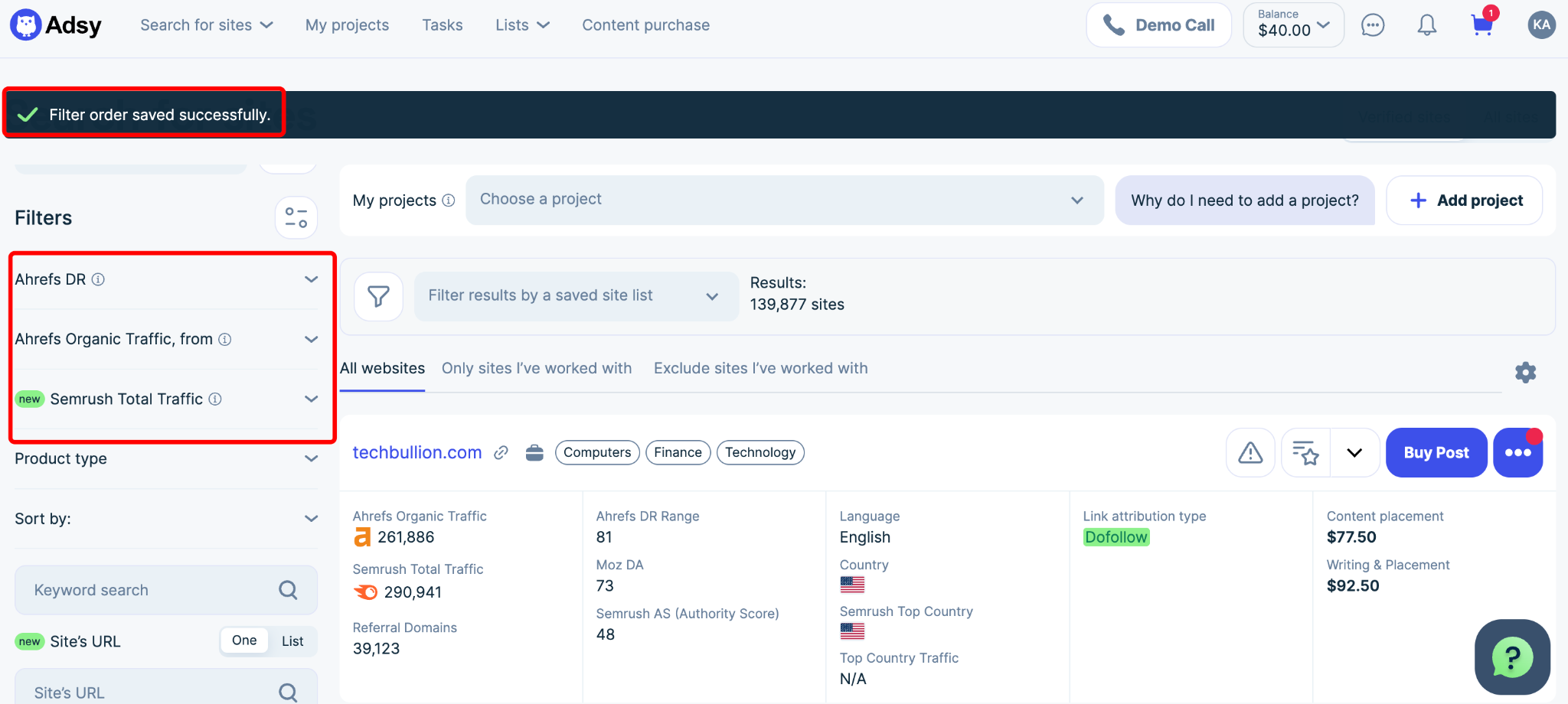
That’s it. We hope you’ll enjoy this feature, and it will make your site search faster and more productive.
Site’s URL
Do you have one site in mind you’d like to work with? Or maybe a couple of them?
Then head to the “Site’s URL” filter. Scroll down your filters in the left menu to access it.
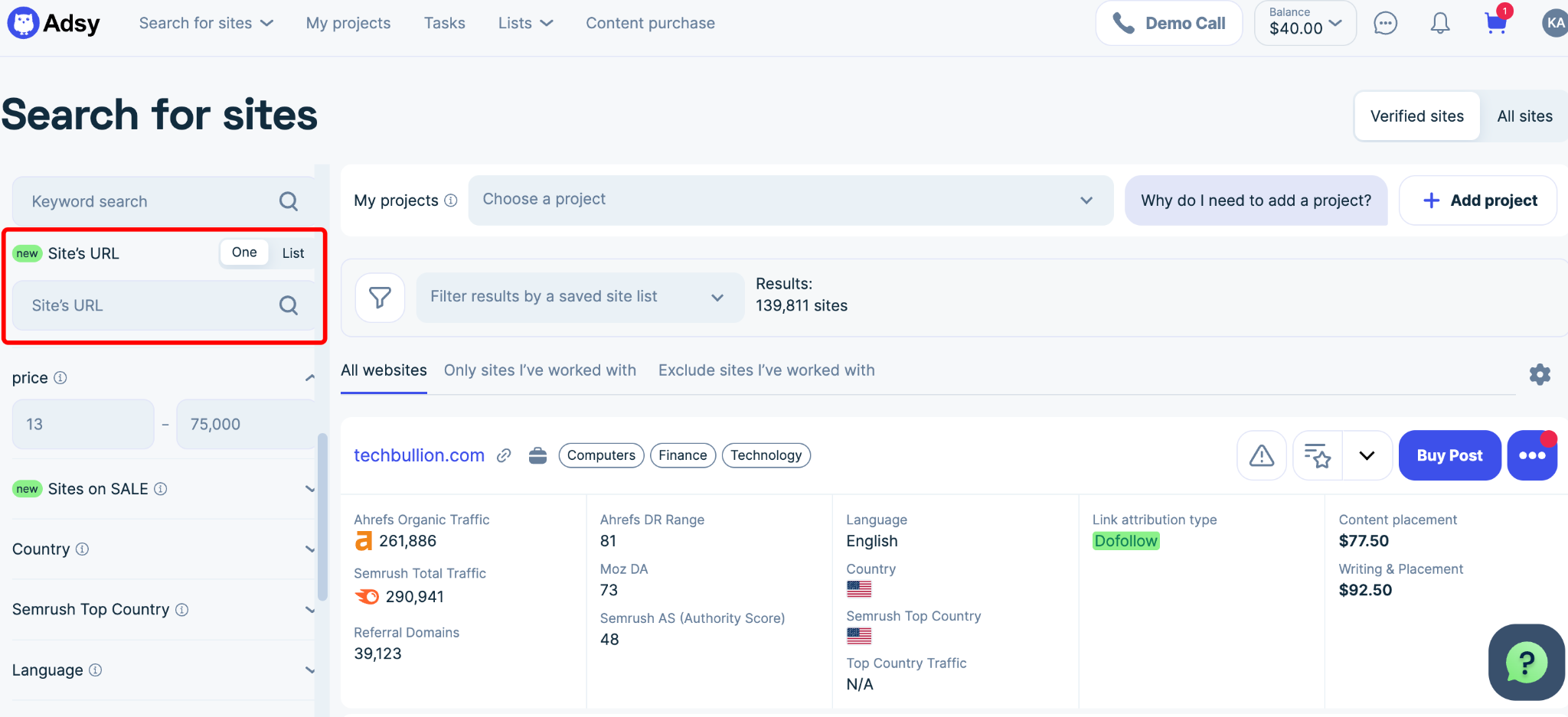
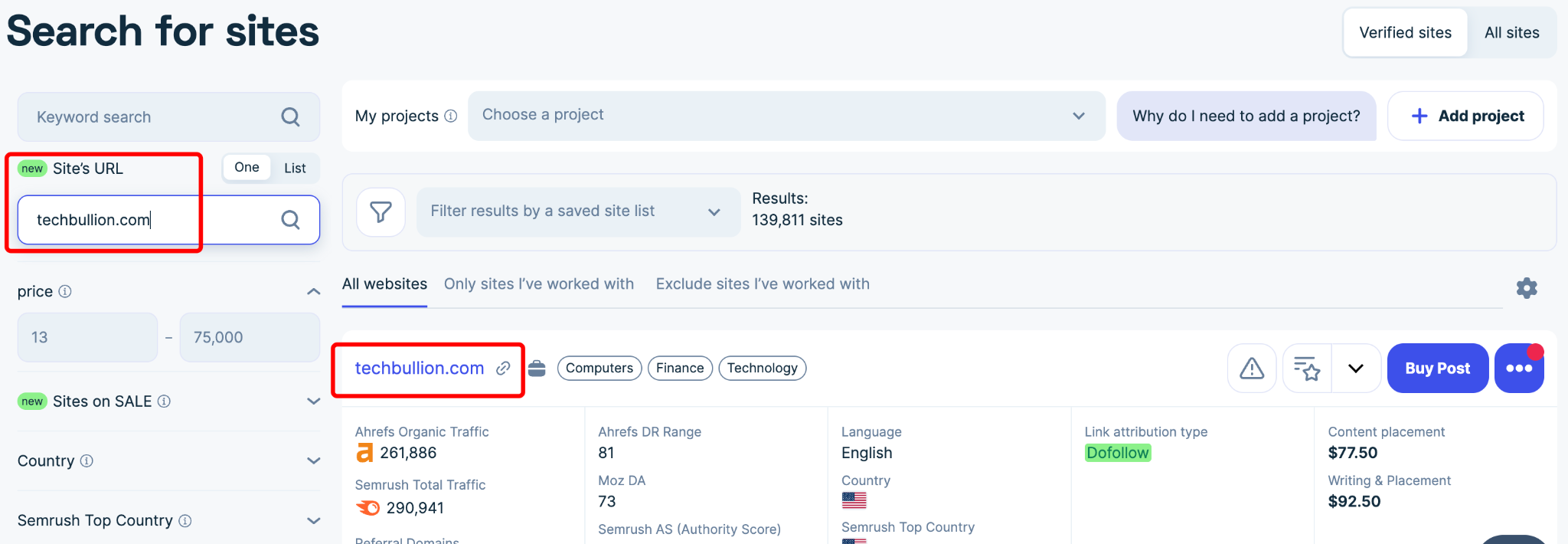
If you wish to find one website, paste one URL, as usual, and press “Enter” or the magnifying glass icon.
Switch to the “List” mode if you need to check a few. Paste your URLs, separate them with commas, and press “Enter” or the magnifying glass icon.
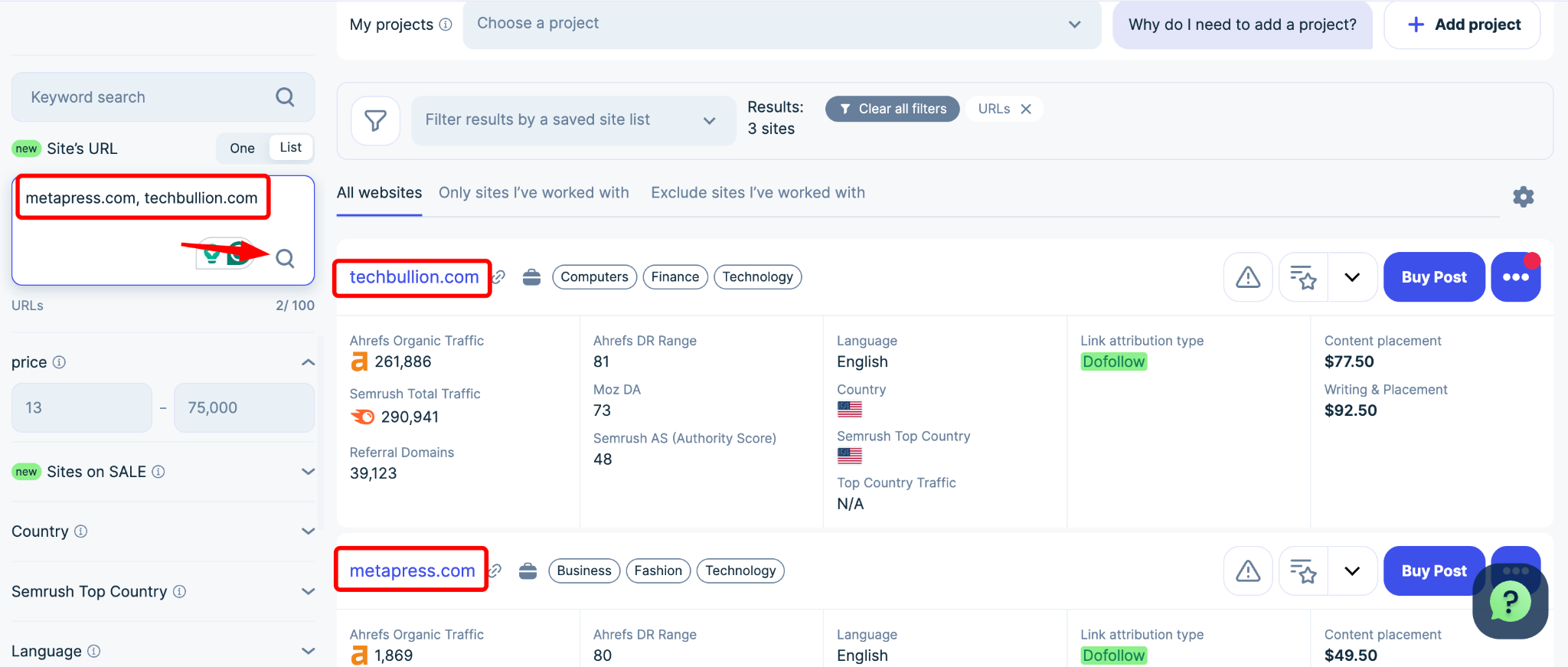
Please note that once you activate this filter, you will see the domains you’ve entered. The same site will stay on the page even after you refresh the page.
Delete the URL from the filter to see the full list of websites again.
Modify filter set view
Now you can change the way the filter set looks.
The first option is to press the filter button, which will hide the filter menu. (Press it once again to unhide the menu.)
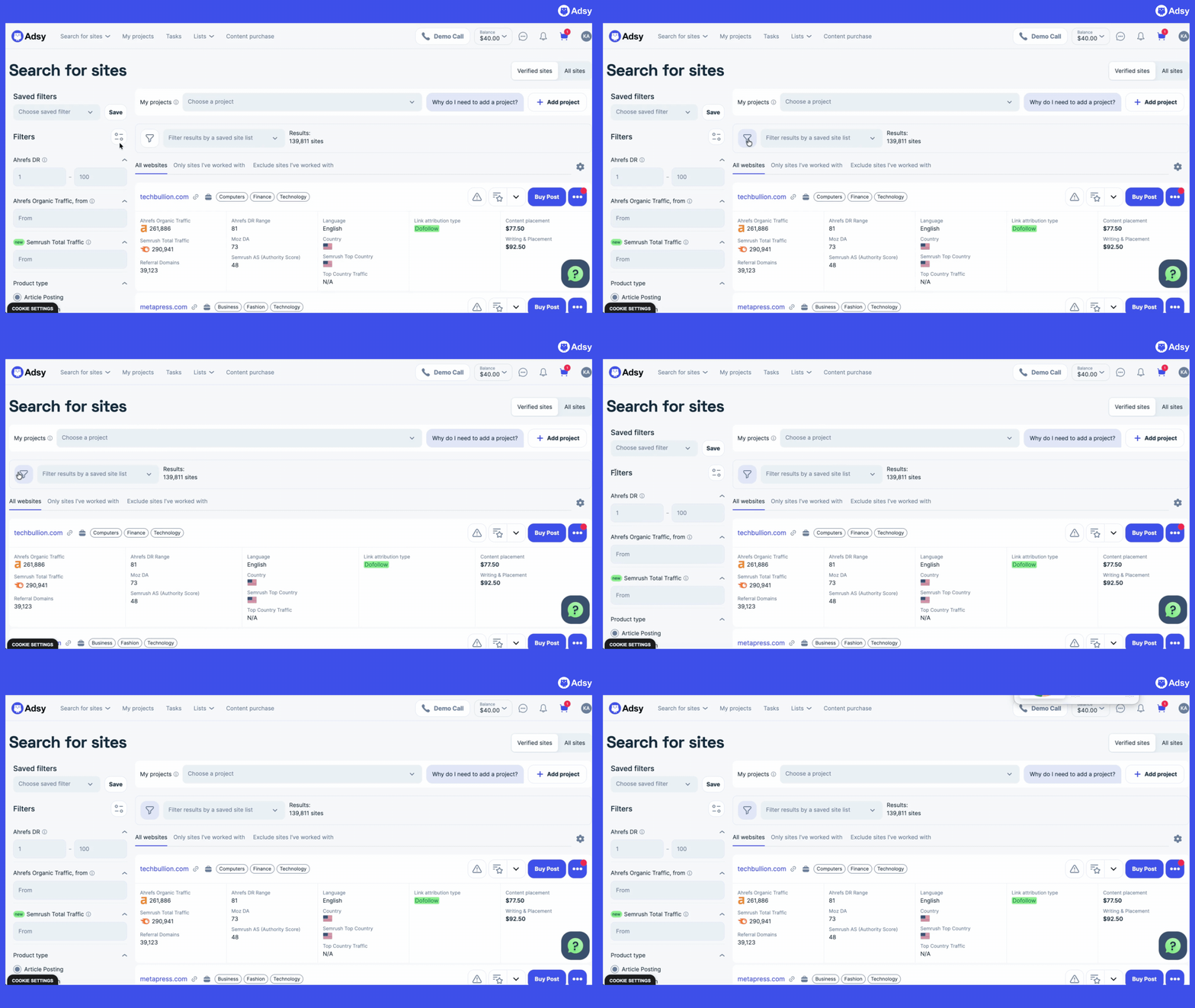
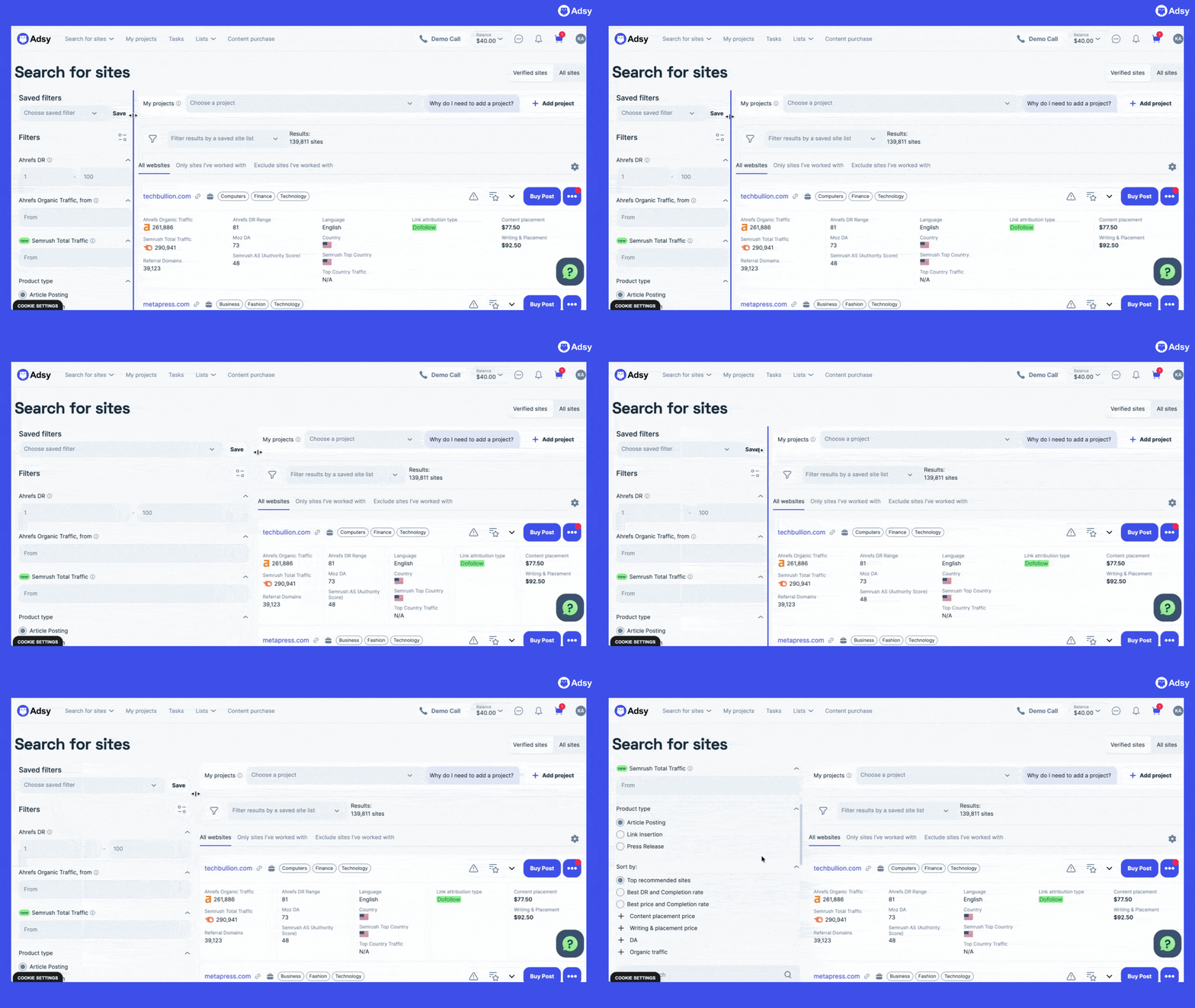
Also, you can change the size of your filter menu to make your work more effective and productive.
Put your cursor between the filter menu and the main interface so that the special blue line shows up. Drag this line to arrange the interface view as you wish.
All trademarks, logos, images, and materials are the property of their respective rights holders.
They are used solely for informational, analytical, and review purposes in accordance with applicable copyright law.


 Sign Up
 Sign Up