






404 Errors in SEO: Where They Come From and What to Do with Them
Have you ever faced a 404 error when clicking a link?
It’s a pretty common situation on the internet. You click a link expecting to find a page. But instead, you see a message saying that the page can’t be found.
In simple words, a 404 response code means that the page you’re trying to access doesn’t exist at that URL.
There can be many reasons for that. Sometimes, it can hurt your SEO. Sometimes, it doesn’t really matter.
Any website can encounter 404 errors. So, if one of your pages returns a 404, there’s no reason to panic.
The important thing is to understand why it happened, whether you need to fix it, and what you can do about it.
In this guide, we’ll look at where 404s come from, how to find them, when you should fix them, and when you can simply leave them alone.
How does a 404 error affect SEO?
A 404 error can be a problem you don’t immediately notice. But it can still negatively affect your SEO.
Especially when it happens constantly or impacts important pages.
In these cases, 404 errors can affect different things, from user experience to crawling, indexing, and link equity.
Here is a detailed breakdown of how each affects your website’s SEO:
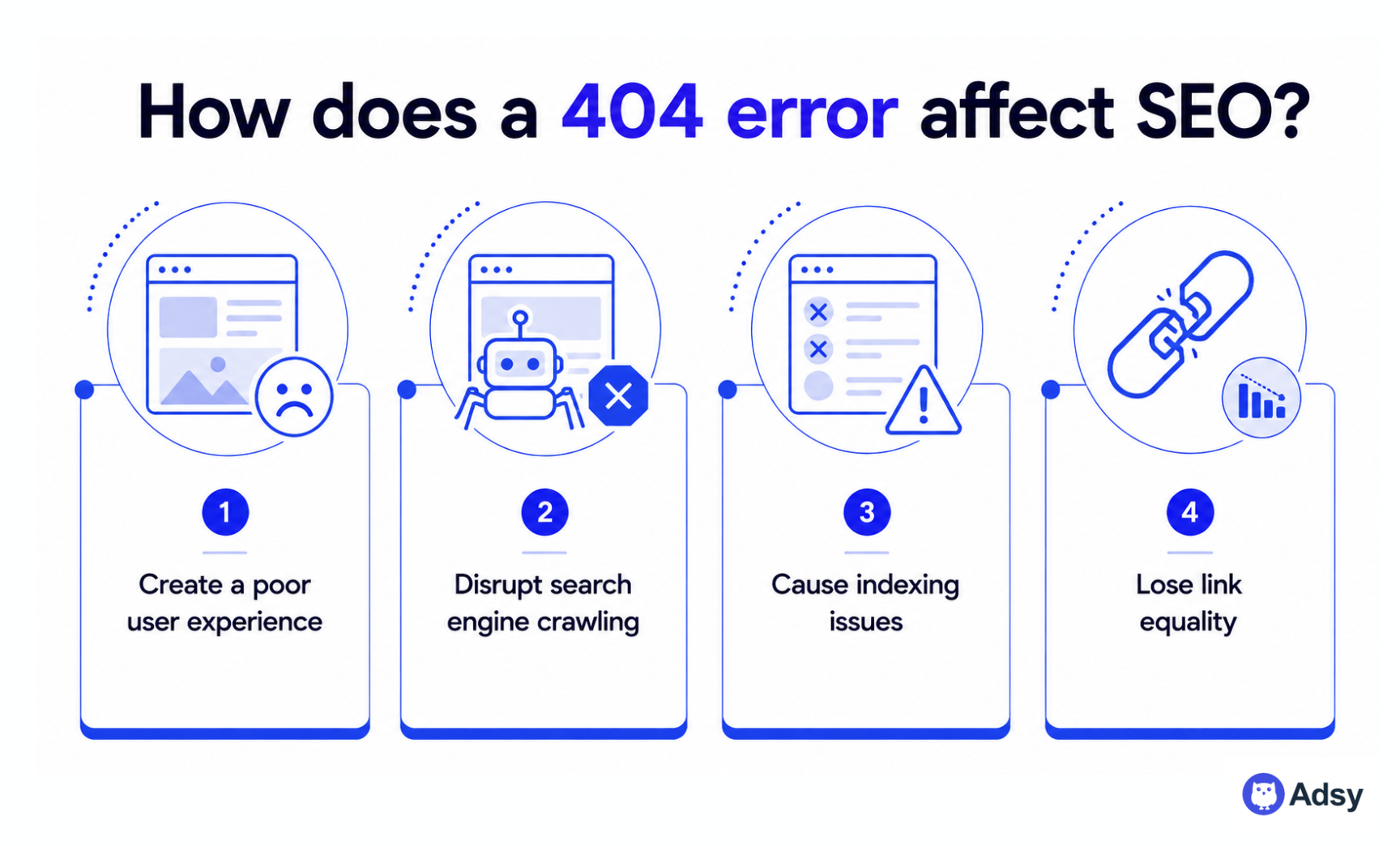
Creates a poor user experience
When people click on your link from Google or another trusted source, they expect to land on the page they were looking for.
But when they don’t, it can be frustrating.
A 404 error can create a negative experience and make visitors less likely to trust your website.
They may simply leave and never come back. And that means losing potential visitors and trust.
Disrupts search engine crawling
Search engines use crawlers to scan websites and discover new or updated pages.
When a crawler visits your website, it scans your pages and follows your links. It tries to understand what your website is about.
A few 404 errors are normal. They usually don’t cause any problems.
But if crawlers find too many broken pages, the crawling process can become less efficient.
This is especially important for large websites.
Search engines may have a harder time discovering and updating your important pages.
Causes indexing issues
If your page was previously indexed but suddenly returns a 404 error, it can eventually be removed from the search index.
This means the page may no longer appear in search results.
And if it was ranking for important keywords, you can lose organic traffic and visibility.
Loses link equity
If a page with valuable backlinks or internal links leads to a 404 error, you can lose some of the SEO benefits those links were providing.
You may also lose the authority you’ve been building over time.
Why do pages with 404 appear?
A 404 error can appear for many different reasons.
Sometimes, it happens intentionally. Other times, it can happen because of a simple mistake or a technical issue.
And that’s completely normal.
Not every 404 is a problem. Some can be safely left as they are. But others can affect your website, especially when they involve important pages.
That’s why you first need to understand why the 404 error appeared.
Once you know the reason, you can decide whether you need to fix it or simply leave it alone.
Here are some of the most common reasons:
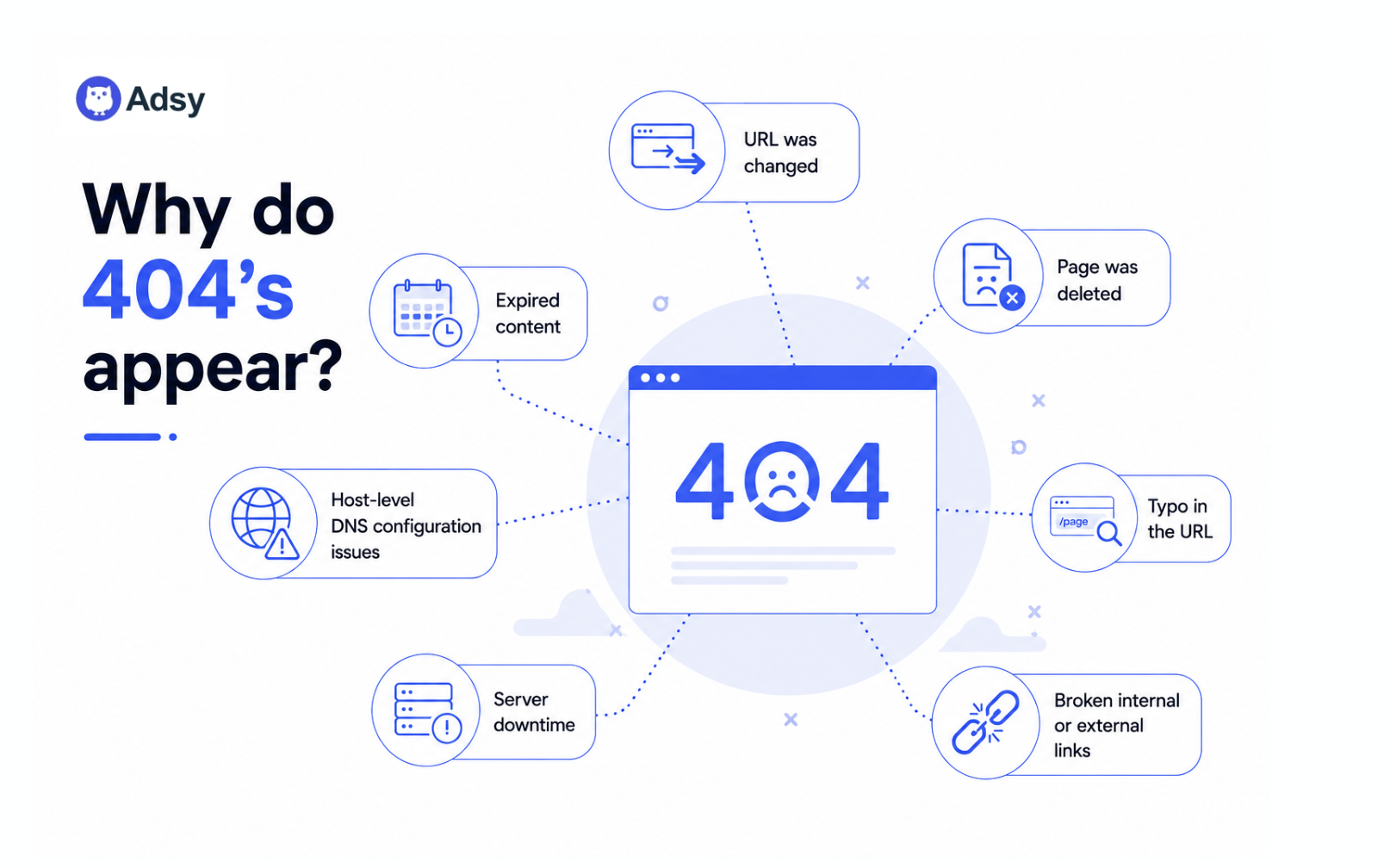
- URL was changed. The page was moved to a new URL, but the old URL is still being used somewhere.
- Page was deleted. You removed the page, but users or search engines can still try to access it.
- Typo in the URL. Someone entered the wrong URL or added an incorrect link.
- Broken internal or external links. A link leads to a page that no longer exists.
- Host-level DNS configuration issues. If you have incorrect DNS settings, that can prevent users from reaching the right page.
- Server downtime. That means your page has temporary server or hosting issues.
- Expired content. Some pages are removed when the content is no longer relevant. That can be pages that indicate information about old events or expired promotions, etc.
How to find 404s
Finding 404 errors is not as difficult as it may seem. There are several tools you can use to find broken pages and understand where they came from.
The most useful ones are:
- Google Search Console (free),
- Screaming Frog,
- Ahrefs,
- Semrush.
You can also check a specific URL manually if you already suspect that something is wrong.
Google Search Console
Source: Google Search Console
Google Search Console helps you find 404 errors easily and for free. It shows pages that Google tried to crawl but couldn’t access, as well as other indexing issues that may need your attention.
This is a good place to start because you can see which 404 pages Google has discovered.
You can also use URL Inspection to check a specific page and see whether Google can crawl and index it.
Screaming Frog
Source: Screaming Frog
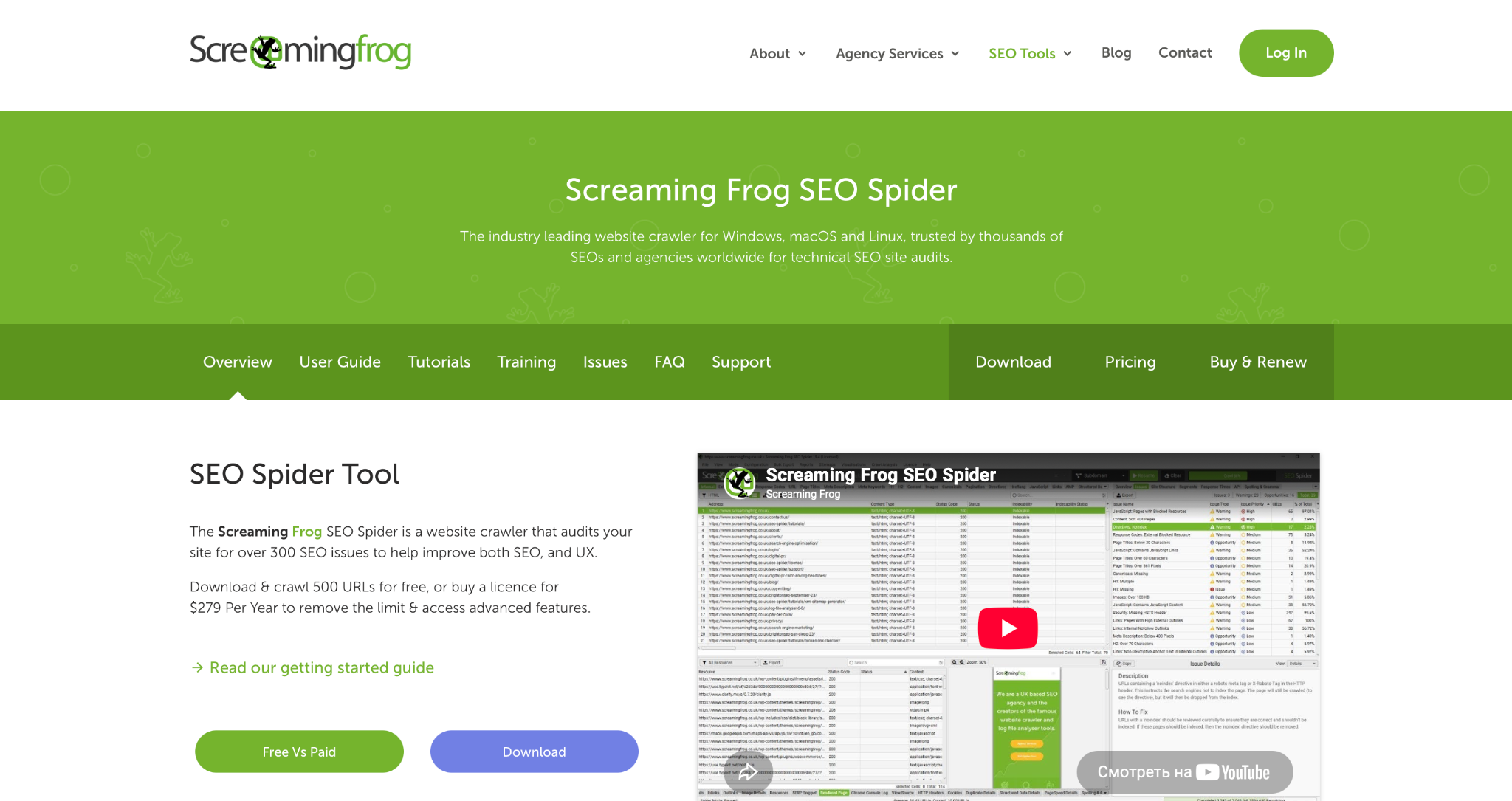
Screaming Frog can crawl your website and find URLs that return a 404 status code. It can also show which pages contain links to these broken URLs.
This makes it easier to understand where the problem comes from.
You can then fix the broken link, redirect the URL, restore the page, or leave it as a 404 if no action is needed.
Ahrefs
Source: Ahrefs Site Audit
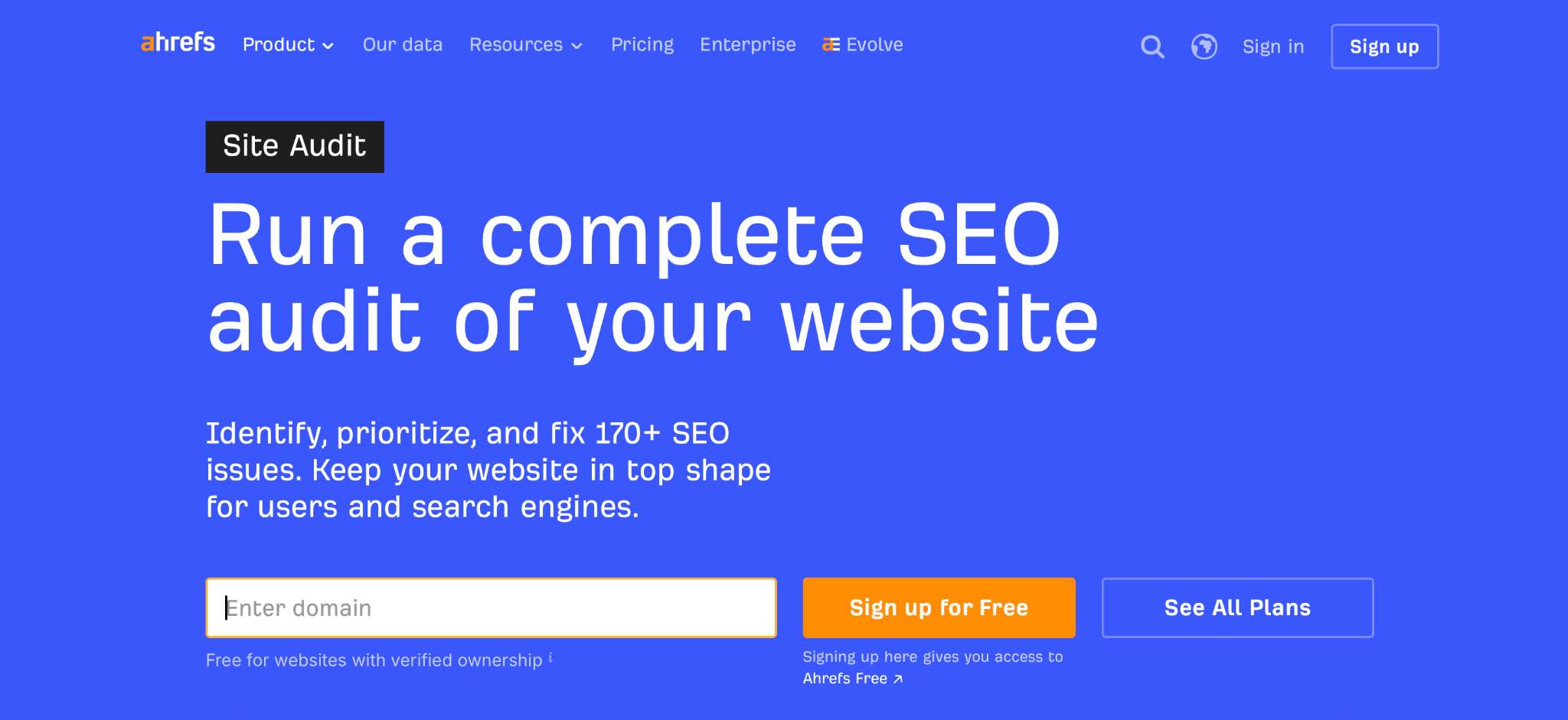
Ahrefs Site Audit can also help you find 404 errors during a site audit. It shows internal URLs that return a 404 and which pages are linking to them.
You can also check broken backlinks to find external websites that are linking to your 404 pages. This can be especially useful if a deleted page had valuable backlinks.
Semrush
Source: Semrush Site Audit
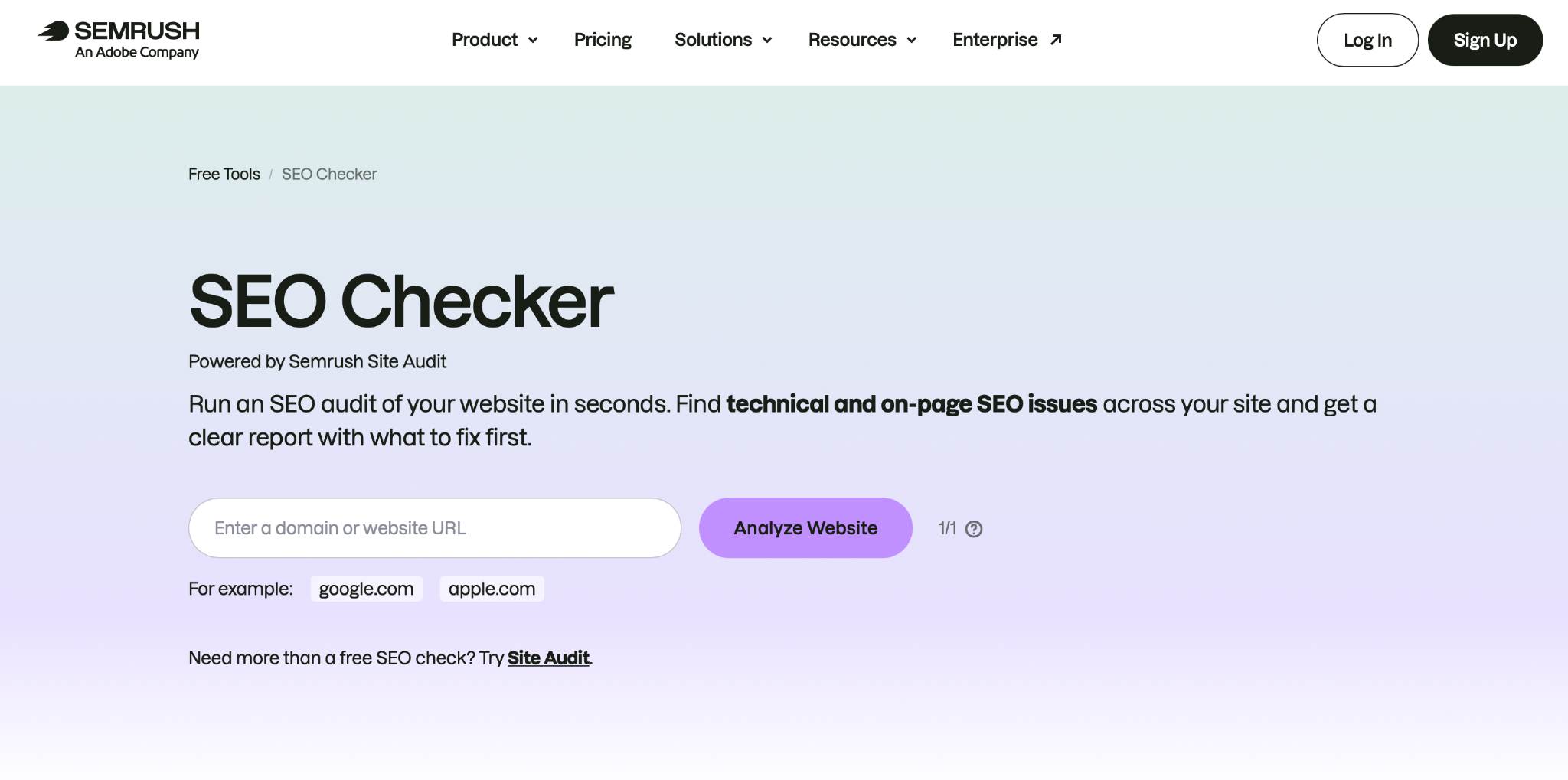
Semrush Site Audit can crawl your website and find pages with different HTTP status codes, including 404s. It can also help you find internal links that lead to broken pages.
This can save you a lot of time, especially when you have a large website with hundreds or thousands of URLs.
Manually
Sometimes you don't even need an SEO tool. If you already suspect that a specific URL is broken, simply open it in your browser and see whether it returns a 404.
Or, if your website doesn’t have that many pages, just go through all of them to check. Don’t forget about forms, image links, calls to action, etc.
Which 404 errors should you fix?
Not every 404 error needs to be fixed.
Pages get deleted, URLs change, old content isn’t needed anymore, etc.
Google itself says that having some 404 errors doesn’t hurt the ranking of the rest of your website.
The important thing is to understand why the page returns a 404 and whether the URL still has value.
If the page was moved or has a relevant replacement, you probably want to take action.
But if the page was intentionally removed and there is nothing relevant to replace it, leaving it as a 404 can be the right choice.
Here is a table showing specific situations when you need to fix a 404 and when you can leave it as it is:
|
Fix the 404 |
Leave it |
|
URL was changed |
The URL is random |
|
Page was accidentally deleted |
Page was intentionally deleted |
|
There is a relevant replacement page |
There is no relevant replacement |
|
Page has valuable backlinks or internal links lead to the 404 |
The content is permanently gone |
|
Duplicate page |
The URL was never a real page |
|
Typo in URL |
|
|
Host-level DNS configuration issues |
How to fix 404 errors?
The right solution for fixing a 404 error depends on why it happened.
So, make sure you check the error first and find out why it happened and whether the URL still has any value.
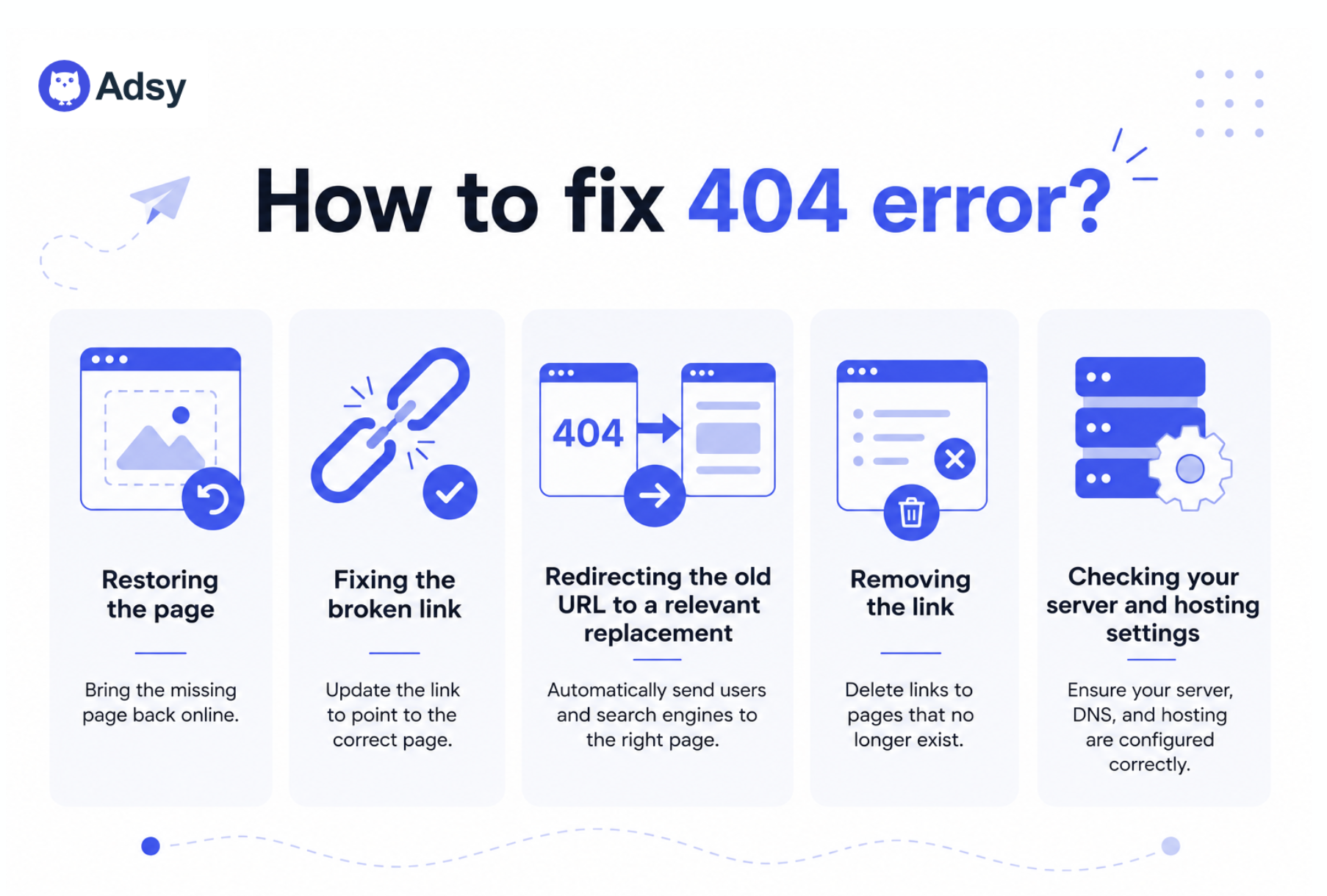
Once you understand the reason, pick the solution that best fits your situation:
Redirect
A 301 redirect is often one of the best solutions to a 404 error. It permanently sends visitors and search engines from one URL to another.
This is especially important for SEO because it can help preserve the value your links have built and reduce the risk of losing search visibility.
Use a 301 redirect when:
- The page was moved to a new URL.
- The URL was changed.
- Two pages were combined into one.
- There is a relevant replacement for the old page.
- The old page has valuable backlinks.
- The old URL still receives organic traffic.
- Other websites still link to the old URL.
- Important internal links still point to the old URL.
But don’t redirect every 404 to a random page. The new URL should be relevant to the old one. If there is no useful replacement, leaving the URL as a 404 can be the better option.
Use our redirect guide to follow the process step by step and make sure you do it correctly.
Restore page
Another way to fix a 404 is simply to bring the page back.
In simple words, you need to make the original URL work again and put the content back on it. You don’t need to create a new URL or set up a redirect. Once the page is restored, users and search engines can access it again.
This makes sense when:
- The page was accidentally deleted.
- The content is still useful.
- The page was ranking for important keywords.
- The page was bringing organic traffic.
- The page had valuable backlinks.
- There is no reason to remove the content.
- The original URL is still the right URL.
For example, if someone accidentally deletes an important blog post, you don’t need to create a new page and redirect the old URL. You can simply restore the original page at the same URL.
To do this, bring the page back through your CMS or website backup and make sure the original URL returns a 200 status code instead of a 404.
Then check that the content, internal links, images, buttons, and other important elements are working correctly.
After that, you can use Google Search Console to check the URL and make sure Google can access and restore the page.
Remove the link
If you have intentionally deleted the page, the solution is pretty simple. Just remove the link.
There is no point in keeping a link that sends visitors to a page that no longer exists.
Fix broken links
Sometimes the page is not a problem. The link is.
The URL may have a typo or simply point to an old version of the page.
In most cases, it’s just a human error.
If that happens, you don’t need to create a redirect just to solve the problem. Fix the link itself.
Check for:
- Typos in URLs,
- Old URLs used in internal links,
- Incorrect links added to a blog posts,
- Links pointing to the wrong page,
- Links that weren’t updated after a URL change.
For example, if the correct slug is /seo-guidebut your article links to /seo-guid, simply fix it.
Check server and hosting settings
What if the page should exist, but it still returns a 404?
Then the problem may not be the URL at all.
Sometimes, server, hosting, DNS, or CMSsettings can prevent an existing page from being accessed correctly. In these cases, check the technical side of your website before creating a redirect or deleting the page.
Pay attention to:
- Server configuration
- Hosting settings
- DNS configuration
- CMS settings
- URL rewrite rules
- Recent server changes
If you aren't sure what is causing the problem, your developer or hosting provider can help you check the server response.
Google also recommends checking server configuration when troubleshooting crawling and URL access issues.
Create a custom 404 page (with examples)
When a 404 page doesn’t require any action to fix it, you can still approach the situation in a more fun way.
Create a custom 404 page.
This way, if visitors end up there, whether you intentionally deleted the page or they misspelled the URL, they can still have a better and more enjoyable experience.
Instead of showing a basic “Page Not Found” message, your custom page can include:
- A clear message explaining that the page can't be found.
- A link to your homepage.
- Links to popular or useful pages.
- A search bar so visitors can find what they were looking for.
- A helpful or creative message that fits your brand.
Here are some fun custom 404 page ideas:
1. LEGO
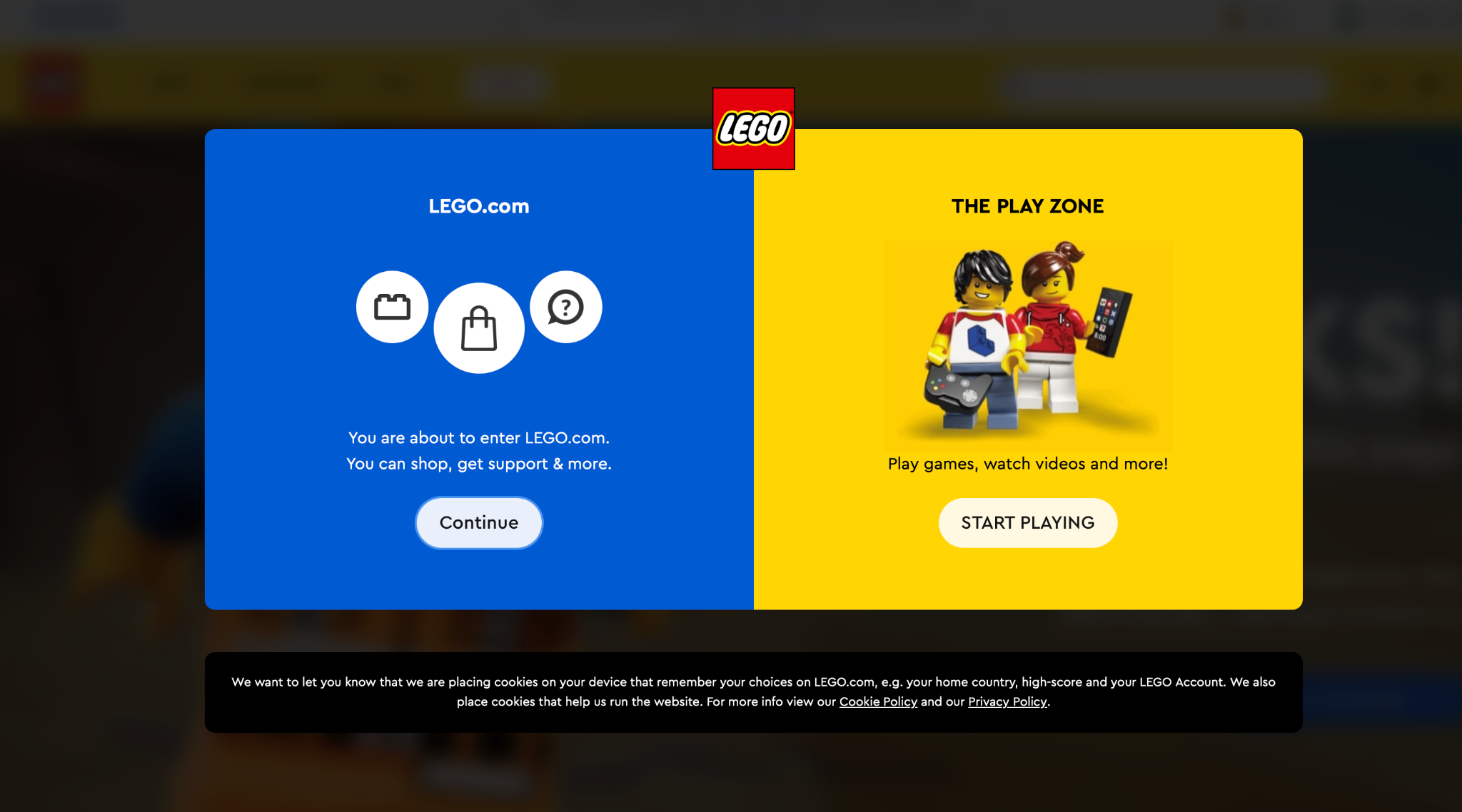
Source: LEGO
LEGO, for example, immediately shows users interactive options when they land on a 404 error page. These options let them go to the main page or enter the Play Zone.
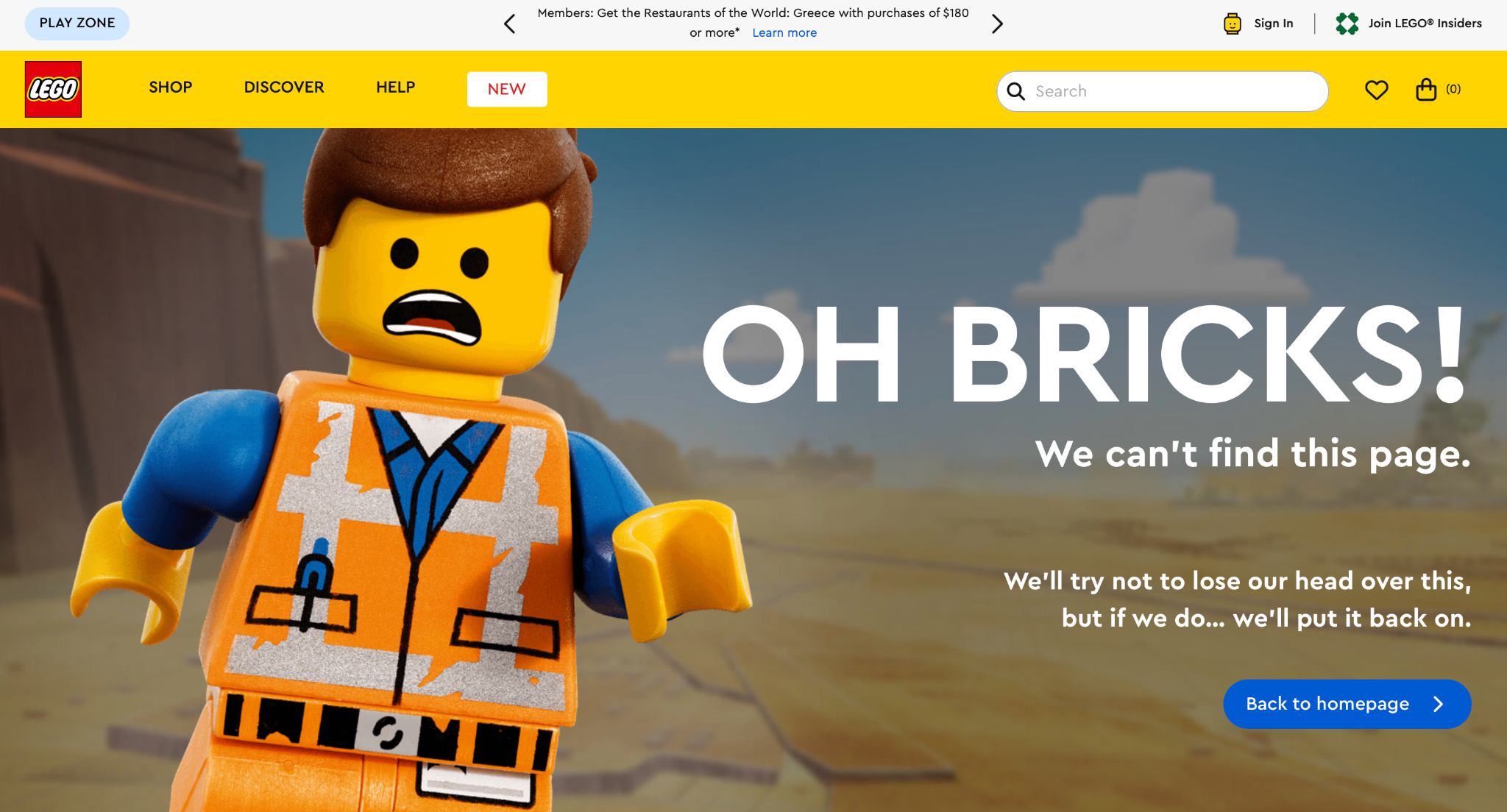
Besides that, the page itself looks fun, with visuals that directly connect with the brand. The fun message also represents LEGO’s playful brand tone.
2. Mailchimp
Mailchimp, for example, doesn’t use any extra visuals on its not-found page.
Instead, it displays a useful message that directs visitors to some of the most popular pages they might be looking for.
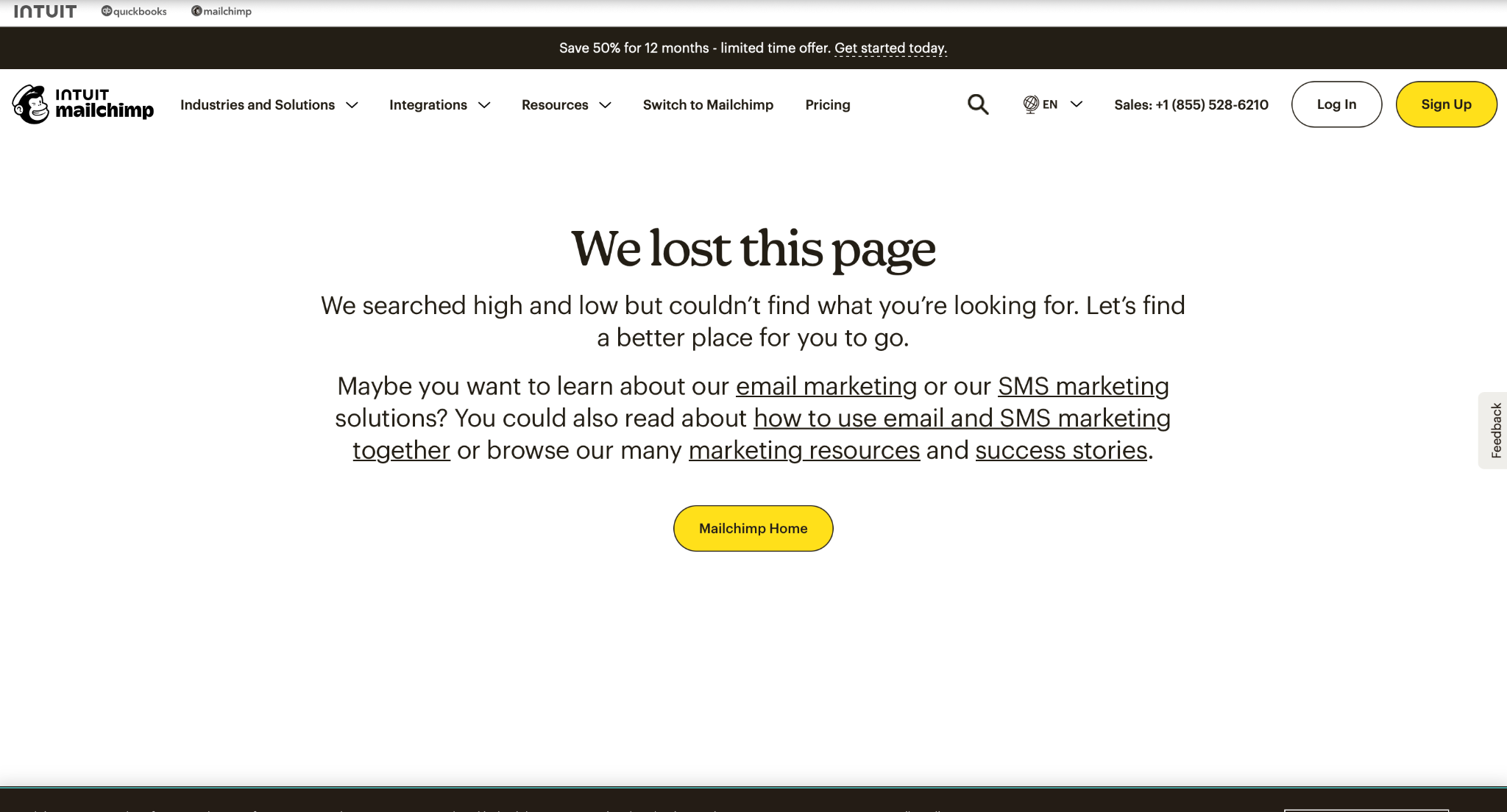
Source: Mailchimp
Besides that, the website also has a yellow visual button that takes visitors directly to the homepage.
And, of course, there are other useful navigation tabs at the top of the page.
3. Dribbble
Dribbble turns the error page into a small interactive experience. Visitors can explore different designs that match a specific color they can choose themselves.
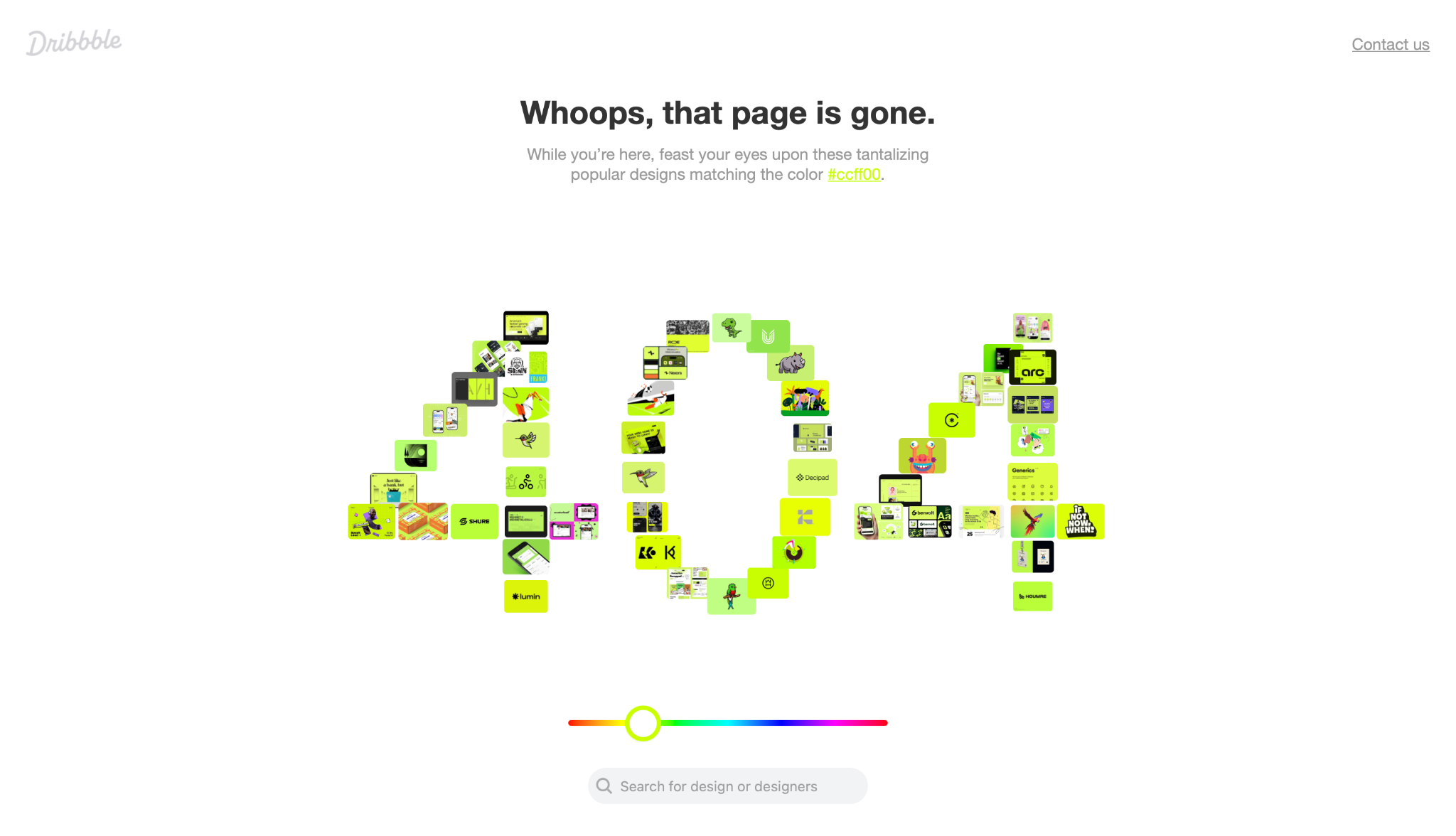
Source: Dribbble
The page also keeps Dribbble’s visual style, with colorful designs and a playful message.
3. Pixar
Pixar’s not-found page is another great example of how an error can be interpreted in a playful way.

Source: Pixar
Besides clear navigation buttons, Pixar also uses a fun image of Anxiety, a character from one of its most famous movies, Inside Out.
This way, Pixar can also reduce the potential negative experience visitors may have when they end up on a 404 page.
4. Wendy’s
Wendy’s, for example, integrated an engaging game into its 404 page. Users can play it when they end up on the error page.
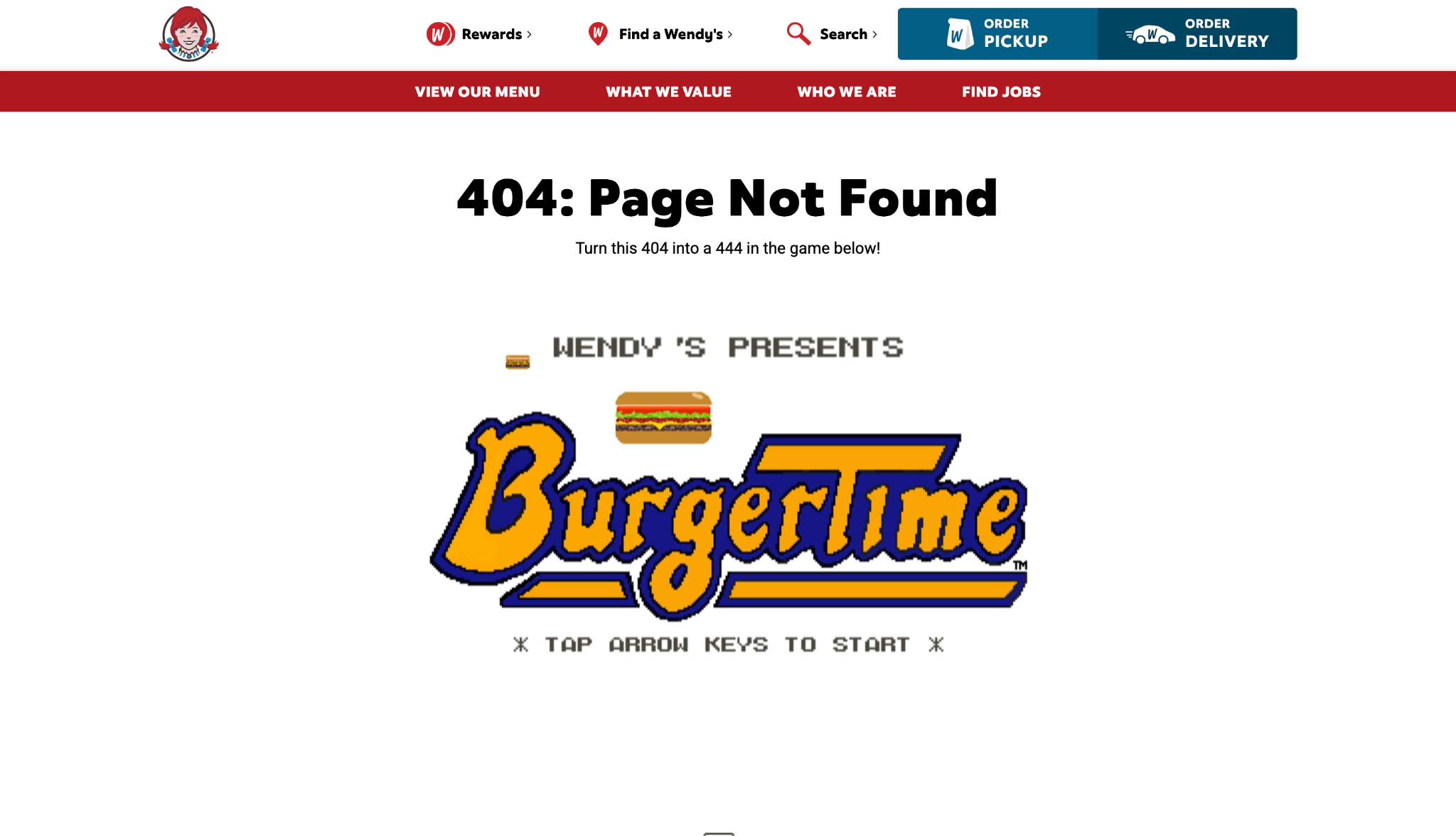
Source: Wendy's
This makes the experience less frustrating and can encourage visitors to stay on the website instead of leaving immediately.
5. Amazon
Amazon has also found a fun way to approach its 404s. Instead of using the same error page, it shows different dogs when you land on a 404.
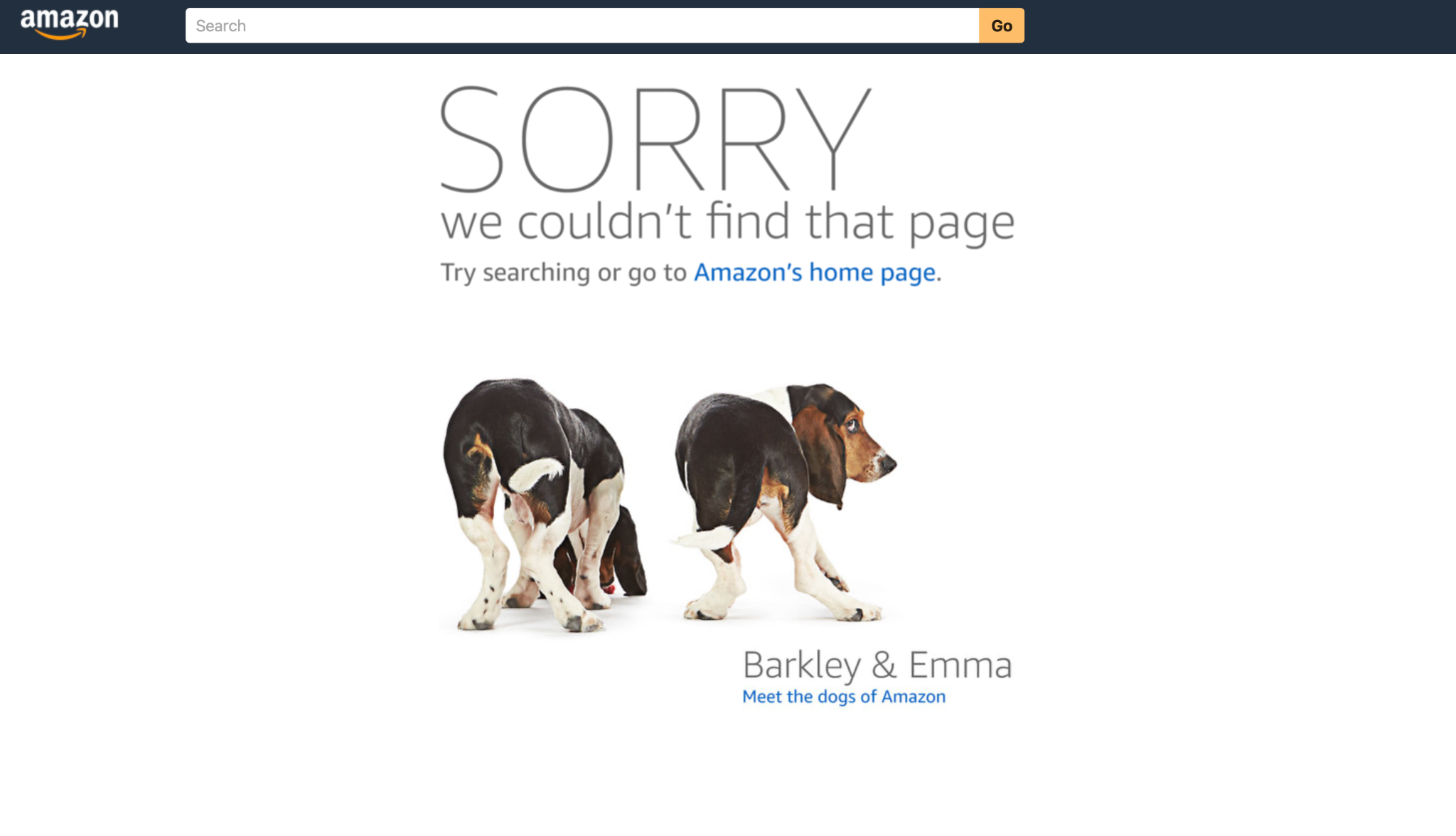
Source: Amazon
And it’s not just a picture. Visitors can click on the dogs and learn more about their stories on Amazon News.
Of course, the page also gives visitors useful options. They can search for what they need or go back to the Amazon homepage.
Conclusion
There are many reasons why a 404 can appear. And for almost every situation, there is a solution. Sometimes you need to fix the problem. Sometimes, you simply need to make the 404 experience better for your visitors.
The most important thing to remember is that 404 errors are not the end of the world. One or even several missing pages won't destroy all the hard work you've done on your SEO. Some 404 errors are completely normal and don't require any action.
But that doesn't mean you should ignore them completely.
Regularly checking your website for broken pages can help you catch problems before they become bigger.
So don't panic when you see a 404. Just understand what caused it, decide whether it matters, and choose the solution that makes the most sense for your website.
FAQ
What is 404 in SEO?
A 404 is a status code that tells you that the page you’re trying to open can’t be found.
In SEO, it means that search engines and users can’t access the content at that URL. It doesn’t mean that something is wrong with your whole website.
Do 404 errors hurt SEO?
Not every 404 error hurts your SEO.
It mostly depends on which page is affected and why.
A random URL that nobody uses usually doesn’t matter. While a 404 on an important page can mean losing traffic, visibility, link value, etc.
How to fix 404 errors?
First, check why the error appeared and whether the page still has value.
You can then take the right step to solve the problem. This can be:
- Restoring the page
- Fixing the broken link
- Redirecting the old URL to a relevant replacement
- Removing the link
- Checking your server and hosting settings.
How to fix soft 404 errors?
A soft 404 happens when a page doesn’t really exist. But the server tells search engines that it does.
In this case, you need to check what happened to the page and return the correct status code.
- If the page is gone, use a proper 404 or 410.
- If it has moved, redirect it to the new page.
How to find 404 errors in Google Search Console?
To find 404 errors in Google Search Console, first go to Page indexing and look under Not indexed.
There, you can find URLs marked as Not found (404) and see which pages Google couldn’t access.
You can also use the URL Inspection tool if you want to check a specific URL.
All trademarks, logos, images, and materials are the property of their respective rights holders.
They are used solely for informational, analytical, and review purposes in accordance with applicable copyright law.




 Sign Up
 Sign Up